This section allows HR and managers to enter complete attendance records for employees across the entire month — all in one view.
Attendance Entry is ideal for:
Filling missed logs
Bulk data entry for payroll calculations
Managing employees not using biometric or tablet check-in
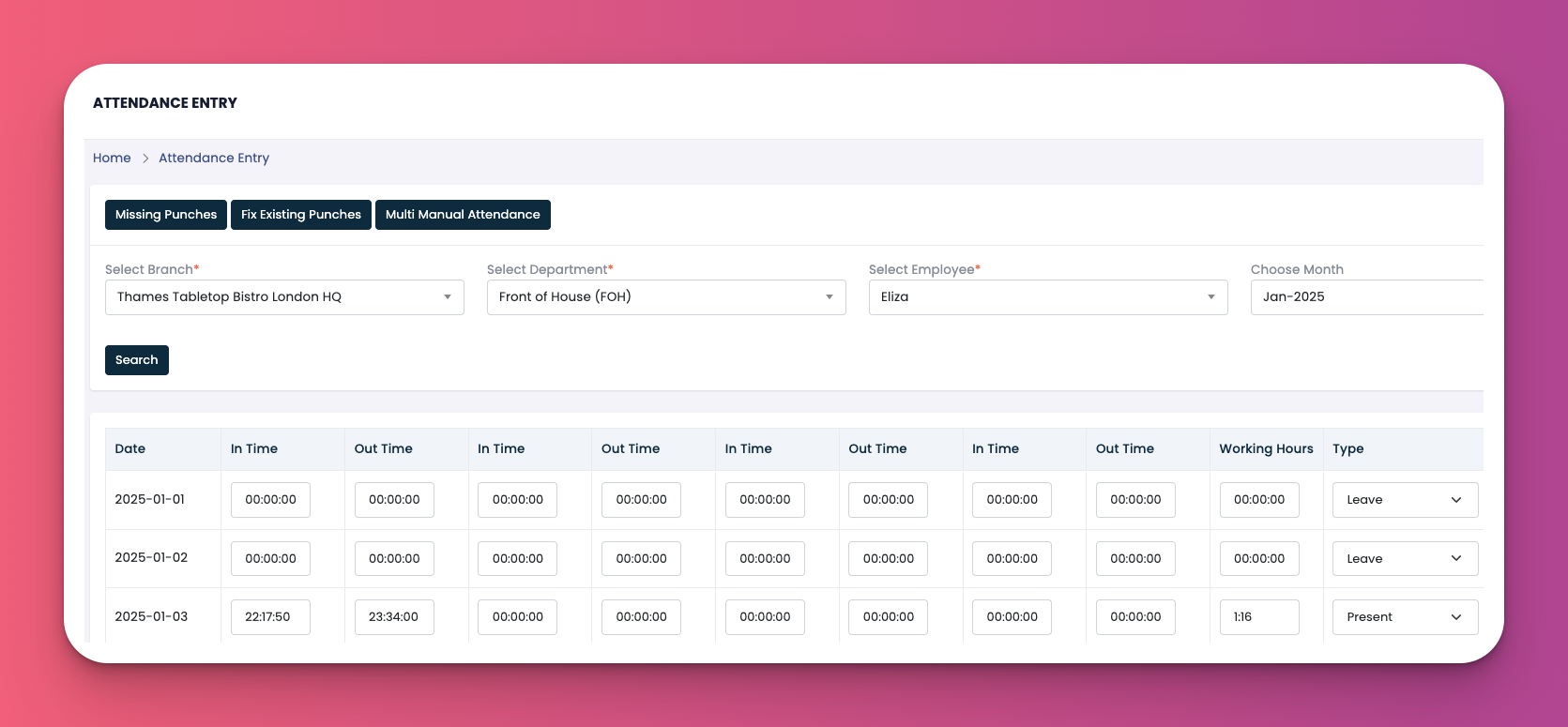
Filter the Records
Select your desired:
Branch
Department
Employee
Month
Bulk Entry Table Appears
Each row represents one day.
Each day has 3 attendance slots:
In Time / Out Time
In Time / Out Time
In Time / Out Time
Working Hours Column
Automatically calculates total worked hours based on the inputs.
Attendance Type
Use the dropdown to mark:
Present
Absent
Leave
Off Day
Breaks
Click on Add/View to insert or review break periods for that specific day.
Update or Submit
Once all days are filled in, scroll to the bottom.
Click Update to save changes or Submit to finalize.
🟧 Add/View (Breaks) – Opens a pop-up to log break-in and break-out times.
⌨️ In/Out Time Fields – Accept time input in 24-hour format (HH:MM).
🔄 Working Hours – Auto-updated based on clock times entered.
⬇️ Type Dropdown – Classify the attendance status of that day.
All inputs use the 24-hour time format:
07:00 = 7:00 AM
14:00 = 2:00 PM
22:30 = 10:30 PM
👇👇
[Video Placeholder]
Q: Can I enter attendance for future dates?
A: No, only past and current dates can be updated.
Q: What if an employee worked a split shift?
A: Use all three attendance slots to reflect split work periods.
Q: Can I update attendance type without entering time?
A: Yes. If the employee was on leave, just choose the correct attendance type and leave time fields blank.