The Manage Holiday section allows you to create, view, edit, and delete holiday records for your organization. These holidays will automatically reflect across attendance and rota systems to ensure proper scheduling.
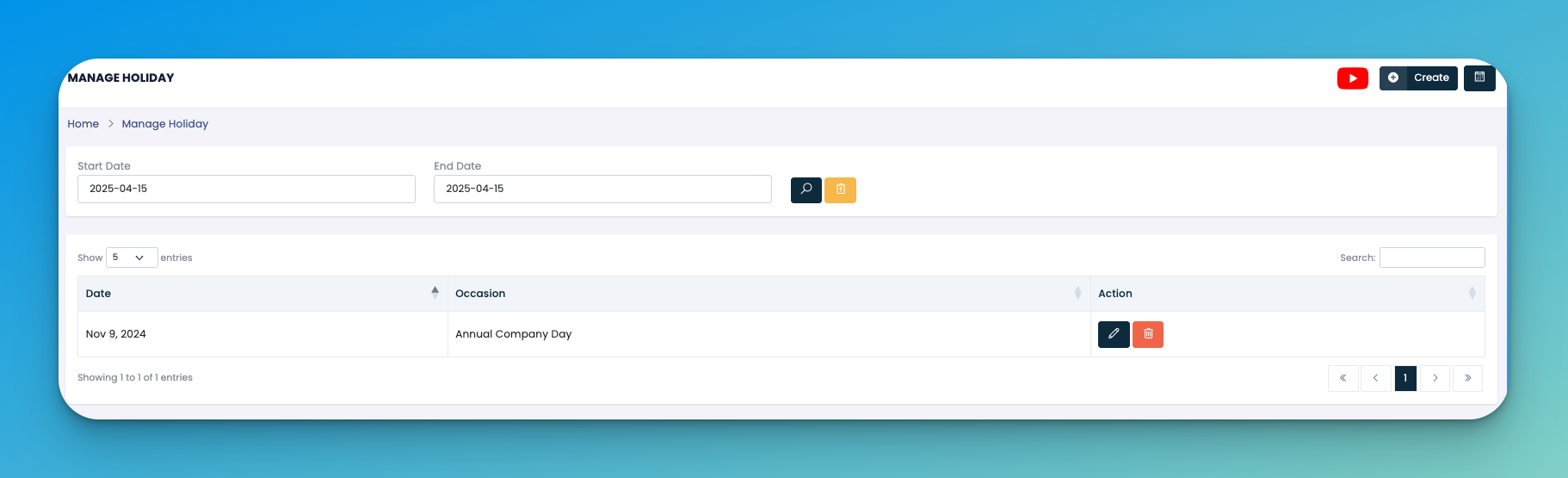
In this section, you can:
Filter holidays by start and end date
🟡 Use the search icon to retrieve results
🗑️ Use the trash icon to clear filters
View a list of existing holidays with dates and occasions
✏️ Edit or 🗑️ Delete a holiday entry using action buttons
📅 View holidays visually in Month, Week, or Day view via the calendar layout
To add a holiday:
Click the 🔴 Create button on the top right.
A pop-up form will appear.
Fill in the Date and Occasion.
Choose a color tag to highlight this day in the calendar.
Click Create to save.
📌 This holiday will appear instantly in the calendar view once created.
After creation:
Holidays appear in the calendar as colored blocks.
Use the toggles (top right of calendar) to switch between Month, Week, or Day views.
The calendar reflects all active holidays across the selected date range.
To edit, click the pencil icon.
To delete, click the red trash bin icon next to the entry.
These options are available in both list and calendar views.
💡 Color selection helps visually distinguish different types of holidays (e.g., national, religious, company-specific).
🕓 Holidays are aligned with the 24-hour format throughout the system.
🎯 Use the calendar view for a quick glance at upcoming or past holidays.
Q: Can I add multiple holidays in one go?
A: Currently, holidays are added one at a time using the Create button.
Q: Where else do holidays reflect?
A: Holidays automatically sync across attendance logs, rota schedules, and reports.
Q: Can I color-code different branches?
A: You can use color tags manually, but there is no branch-specific color-coding by default.
👇👇
[Holidays ]