Easily document and manage staff transfers between branches, departments, or roles — all from one place.
The Manage Transfer page helps you:
Track when and why an employee was transferred
Maintain a centralized HR record
Ensure smooth departmental or location shifts
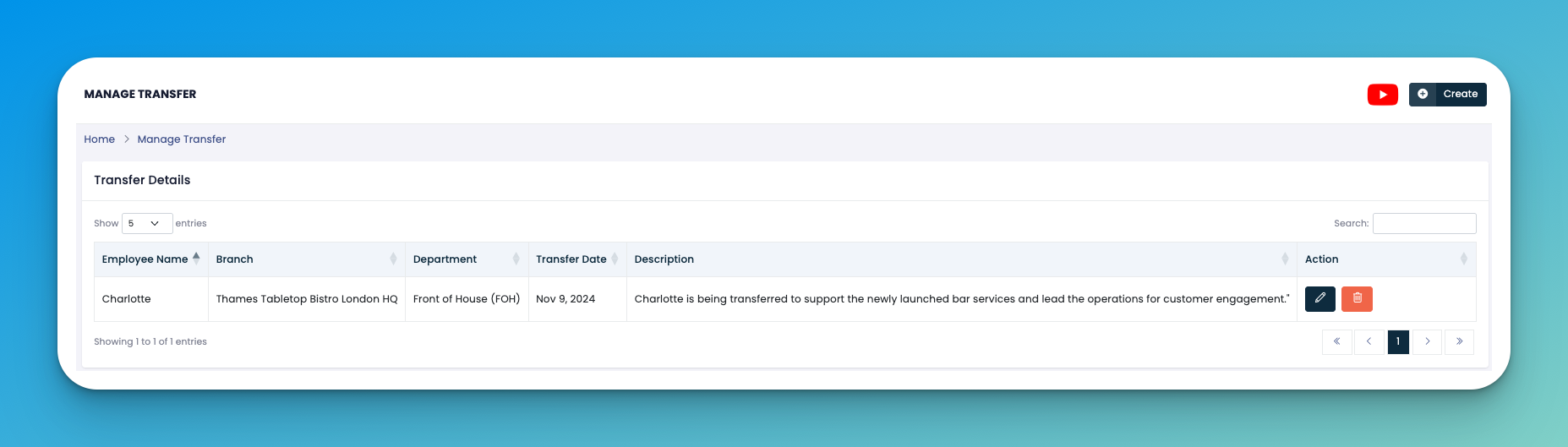
Click the ➕ Create button at the top-right corner.
Fill in the transfer form with the following details:
👤 Employee Name – Choose the employee being transferred.
🏢 Branch – Select the current or new branch.
🏷️ Department – Select the department involved.
📅 Transfer Date – The effective date of the transfer.
📝 Description – A brief reason or explanation for the transfer.
Click Save to complete the transfer entry.
✏️ Edit – Update transfer information if changes are needed.
🗑️ Delete – Remove the transfer record permanently.
Keep the description meaningful to reflect context — for audits or future references.
Transfers can also trigger role or access updates in other modules, so always double-check details.
👇👇
[Transfer]
Q: Can I transfer the same employee multiple times?
A: Yes! Each new transfer is recorded as a new entry in the system.
Q: Can this affect payroll or task allocation?
A: Yes, depending on your eHubt setup, a department or branch change may also impact payroll settings, schedules, or permissions. Always verify related settings after a transfer.