This section helps managers and admins identify and resolve attendance issues such as missed clock-ins, incomplete breaks, or employee-submitted time corrections.
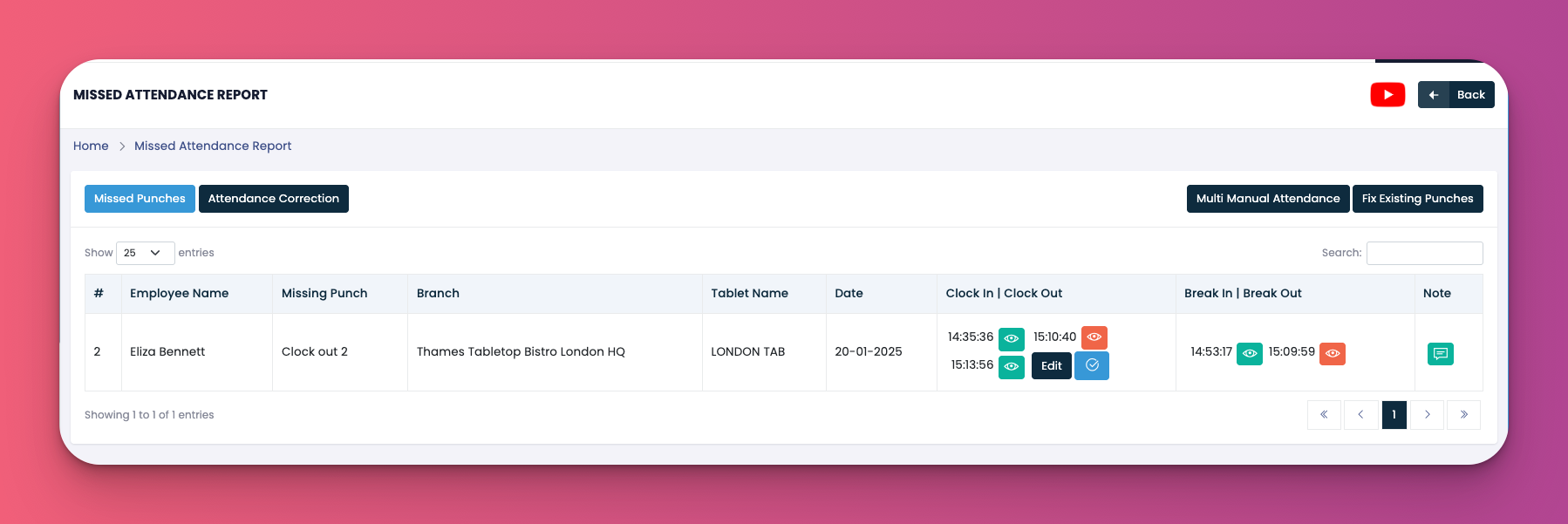
Under the Missed Punches tab, you can track and manage incomplete attendance entries.
✅ What You’ll See:
Employee Name
Missing Punch (like Clock Out, Break End)
Branch & Tablet Name
Date of Record
Clock In / Clock Out Times
🟢 00:01 | 🟠 05:36 – Actual times in 24-hour format
👁️ View Photo – Displays image captured during tablet login
🟦 Edit – Admin override to adjust punch
🔵 ✓ – Employee-requested correction (optional to accept)
Break In / Break Out
🟢 16:11 | 🟦 Edit – Add or update missed break times
Note Icons
🟢 💬 Green Note – Employee added a reason for missing punch
🔵 💬 Blue Note – No note provided by employee
The Attendance Correction tab provides a consolidated list of pending fixes awaiting approval.
🧾 What You’ll See:
Employee Info & Date
Tablet Name Used
Clock In / Clock Out
👁️ View punch photos
🟠 Missed punches are shown in orange
🟦 Edit – Admin control to modify entries
Break In / Break Out
Status: 🟠 Open
Notes: 💬 Green (provided) or Blue (missing)
Clicking Fix Existing Punches takes you to the Branch Attendance page where you can review corrected records alongside worked and break hours.
👁️ View punch photo
🟦 Edit punch
🔵 ✓ Accept employee-suggested time
🟠 Auto-flagged or missing time
💬 Green = Note added
💬 Blue = No note submitted
👇👇
[Video Placeholder]
Q: Are all times shown in 24-hour format?
A: Yes, all attendance entries use 24-hour format like 22:43 for 10:43 PM.
Q: What does the blue ✓ icon do?
A: It allows you to accept an employee’s requested punch time when they forgot to log out or in.
Q: Can I add a missing note?
A: Yes, you can edit and add management remarks alongside time corrections.
Q: What does the green or blue note icon mean?
A: 💬 Green = Note submitted. 💬 Blue = No explanation given by the employee.