The Branch Attendance Report gives a detailed view of employee check-ins and check-outs from tablets installed at different branches. It is essential for monitoring punctuality, validating payroll, and identifying attendance issues.
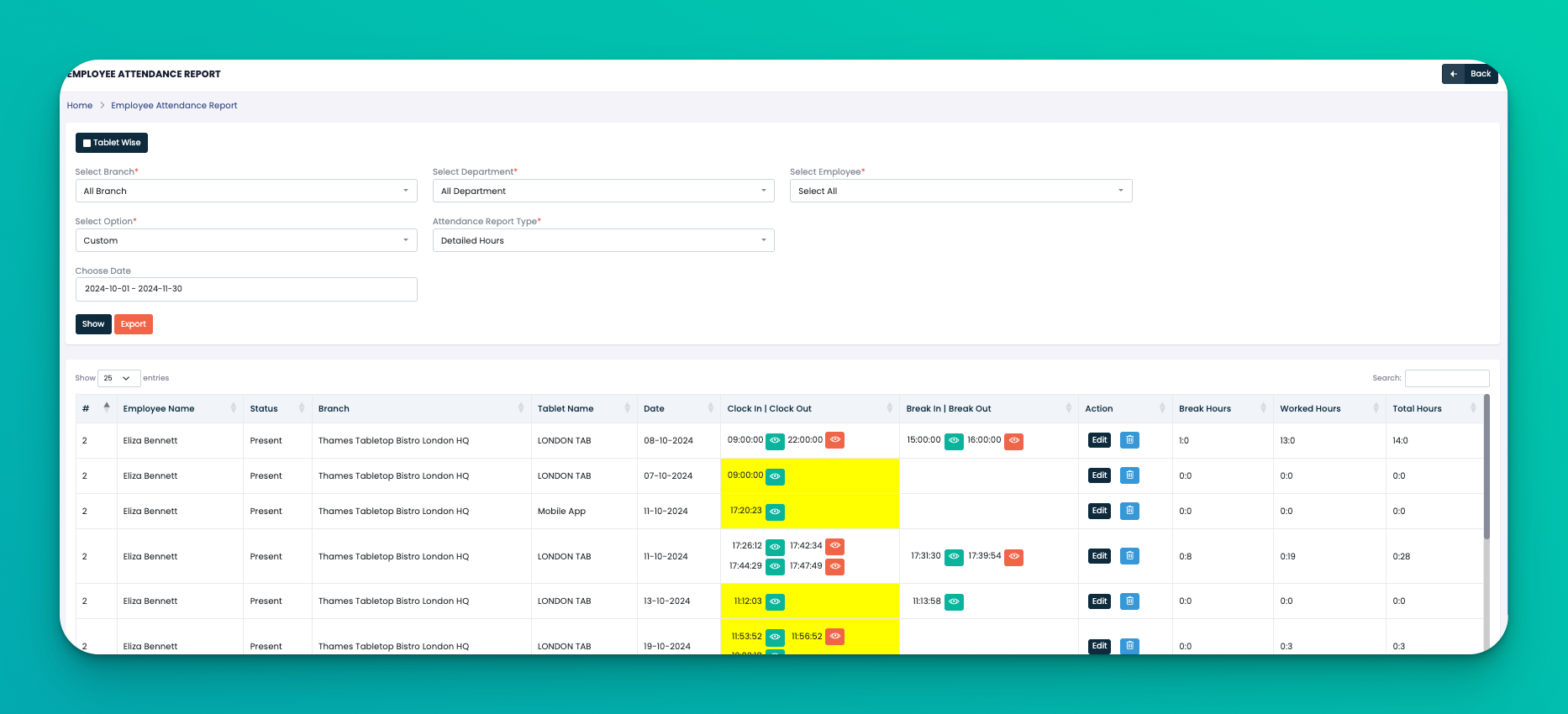
Step 1: Select Filters Use the filter panel at the top to narrow down your report:
Branch – Choose a specific location or "All Branch"
Department – Filter by specific team
Employee – Focus on a single team member or leave as "All"
Option – Choose between Daily, Weekly, Monthly, or Custom
Date Range – Select the desired start and end dates
Attendance Report Type – Choose "Detailed Hours" for exact clock-in and clock-out data
Click Show to load the report.
Each entry shows:
Employee Name and Status (e.g. Present)
Branch and Tablet Name used for attendance
Date of entry
Clock In and Clock Out times
Break In and Break Out times
Total Break Hours
Worked Hours (excluding breaks)
Total Hours (including breaks)
You can also:
Edit entries if needed
Delete faulty logs using the bin icon
At the bottom, you will see:
Total Break Hours
Total Worked Hours
Total Overall Hours
Use the Export button to download the entire dataset in Excel format for internal use, audits, or compliance purposes.
Ideal for reviewing full attendance logs for a single employee across multiple tablets.
Combine with Actual vs Scheduled HR and Overtime Payroll to verify discrepancies.
Quickly identify if any tablet has missing check-in or check-out times.
Q: What if clock-in or clock-out is missing?
Missing data is highlighted with red indicators. These entries may require correction.
Q: Can I change times manually?
Yes, click the Edit button to adjust clock times or correct errors.
Q: How is break time calculated?
Breaks are calculated from the break-in and break-out times logged on the tablet.