The Branch Labour Costs section provides a detailed analysis of employee attendance and work hours across branches, helping you evaluate labor efficiency and payroll projections.
This module calculates the total hours worked per branch, giving management an easy way to monitor employee labor cost trends.
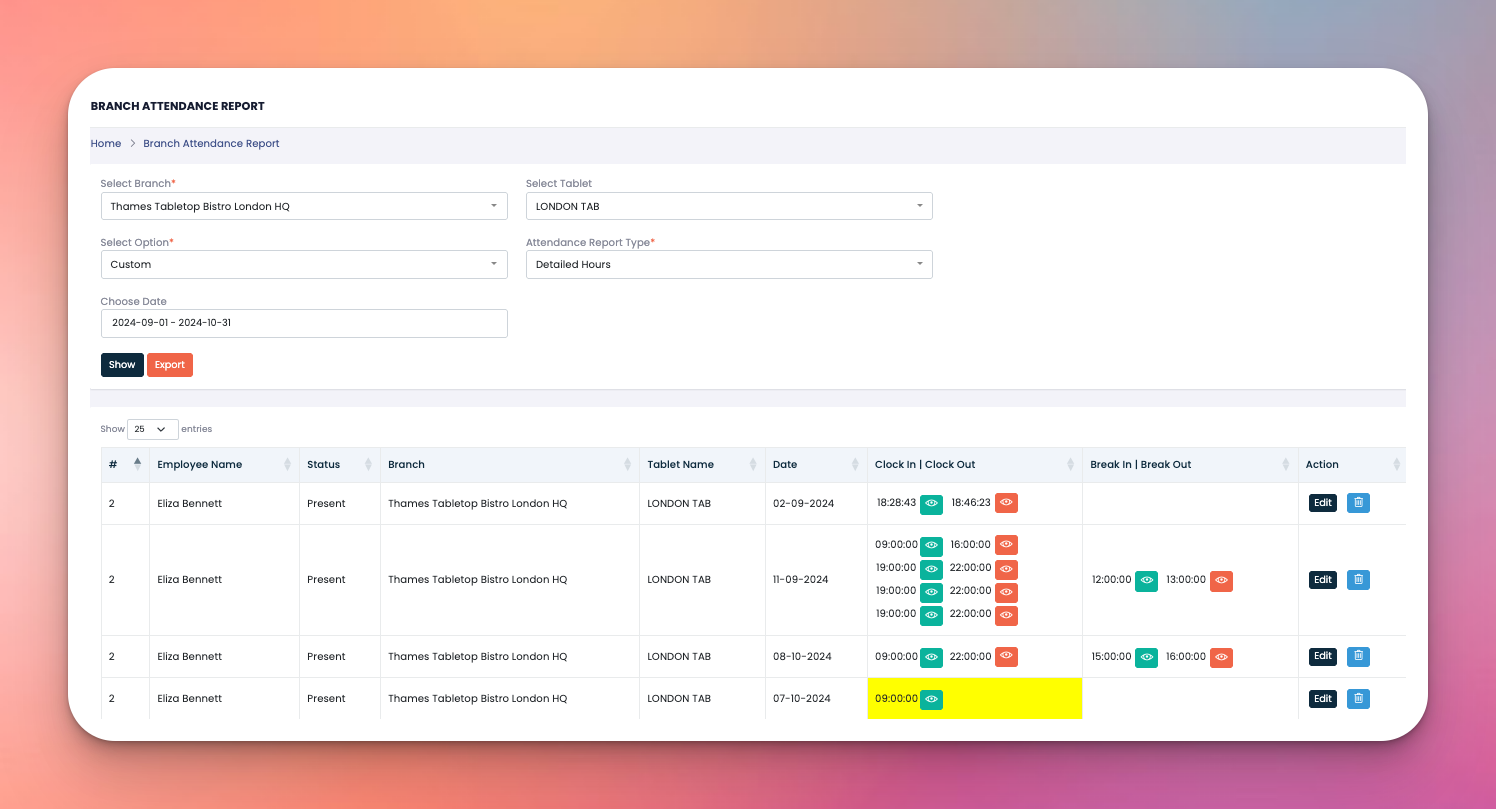
Select Filters:
Branch: Choose which branch’s data to view.
Tablet: Select the specific attendance device (e.g. London Tab).
Option: Choose between Monthly or Weekly reports.
Month & Year: Define the time period.
Attendance Report Type:
Total Hours (default view)
Worked Hours
Break Hours
Click “Show” to generate the report.
Export the data to Excel using the “Export” button.
Once the filters are applied, the following data is displayed in table format:
Employee Name
Branch Name
Date Range
Attendance Status
✅ Green Tick = All attendance records matched
❗Red Icon = Discrepancy or missing data
Tablet Used – Identifies the device used for clocking in/out
Worked Hours
Break Hours
Total Hours
Q: What happens when I click the red icon in Attendance Status?
A: It shows you an Employee Attendance Report highlighting missing punches or irregular entries (see third screenshot).
Q: And what if I click the green icon?
A: You’ll see the complete attendance log with all clock-in/out times and break details (see last screenshot).
Q: Can I export these records?
A: Yes, click the “Export” button to download everything in Excel format.