This report helps management compare the number of hours employees were scheduled to work versus the hours they actually worked. It’s crucial for tracking attendance discrepancies, labor cost optimization, and ensuring shift compliance.
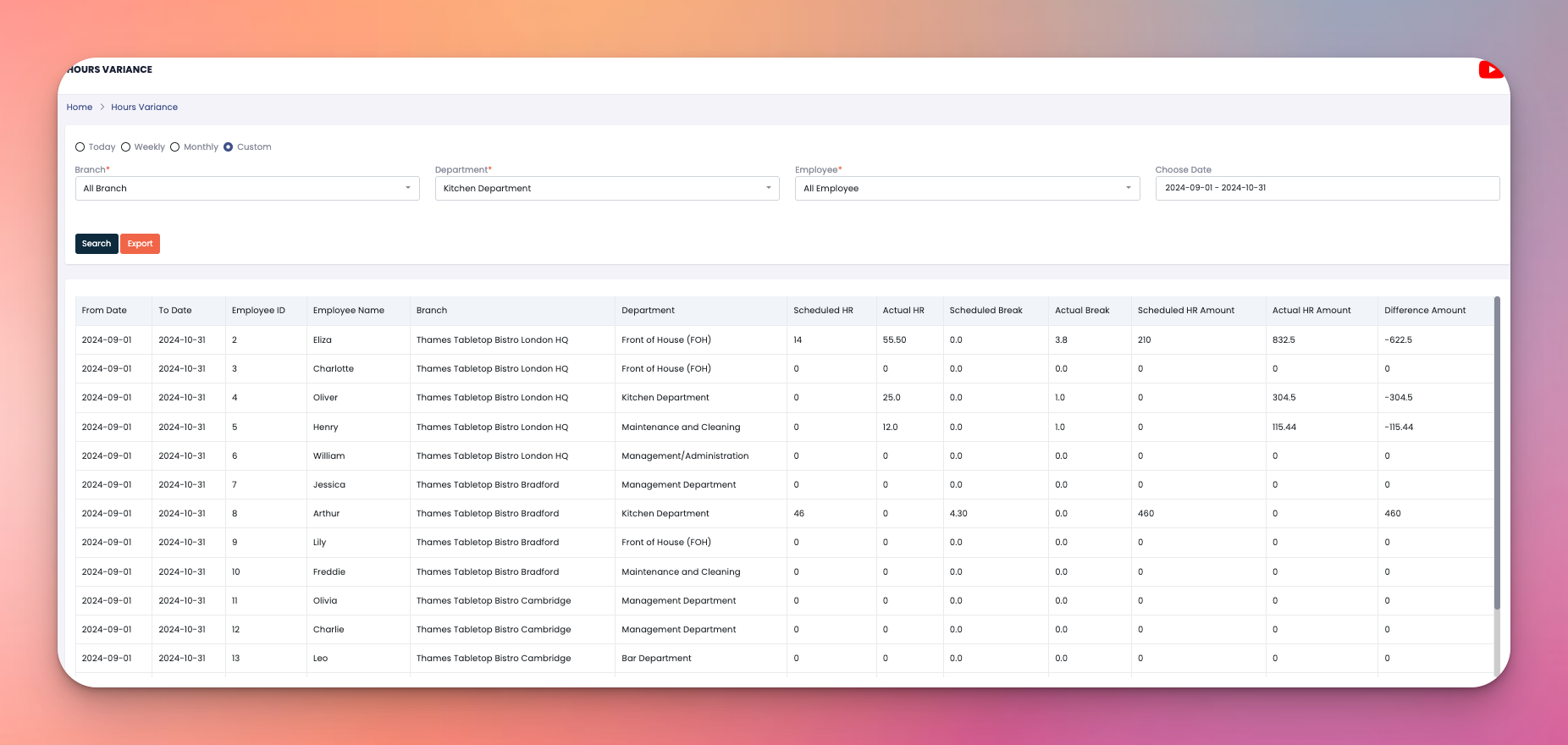
At the top, you can fine-tune your report view using:
Time Period – Choose: Today, Weekly, Monthly, or a Custom range
Branch – Filter data by location
Department – Focus on specific teams or roles
Employee – View hours for an individual staff member
Select Month – Filter by the desired calendar month
Click Search to load the results or Export to download the report.
The results appear in a detailed table with the following columns:
From Date / To Date – Reporting period for the entry
Employee ID & Name
Branch & Department
Scheduled HR – Total hours planned for the employee
Actual HR – Hours actually worked (based on system attendance)
Scheduled Break – Planned break time
Actual Break – Break time actually taken
Scheduled HR Amount – Cost estimation based on scheduled hours
Actual HR Amount – Cost of actual hours worked
Difference Amount – The cost gap between what was scheduled vs. what was actually worked
🎥 Video Tutorial
👇👇
[Video Placeholder]
A negative difference amount means the employee worked more than scheduled (overtime).
A positive difference indicates underperformance or missed shifts.
Export reports regularly to identify trends and make cost-saving decisions.
Q: Can I adjust break times manually?
A: No, break times are automatically calculated from actual attendance unless your system allows manual override.
Q: How often should I review this report?
A: Weekly or monthly reviews are ideal, especially before processing payroll.
Q: What affects actual HR cost?
A: It’s based on the employee’s hourly wage and total time worked during the selected period.