The Add Courses section allows admins to structure training content by creating categories, subcategories, and detailed course modules. You can manage everything from course hierarchy to interactive video content.
👇👇
[Add Courses ]
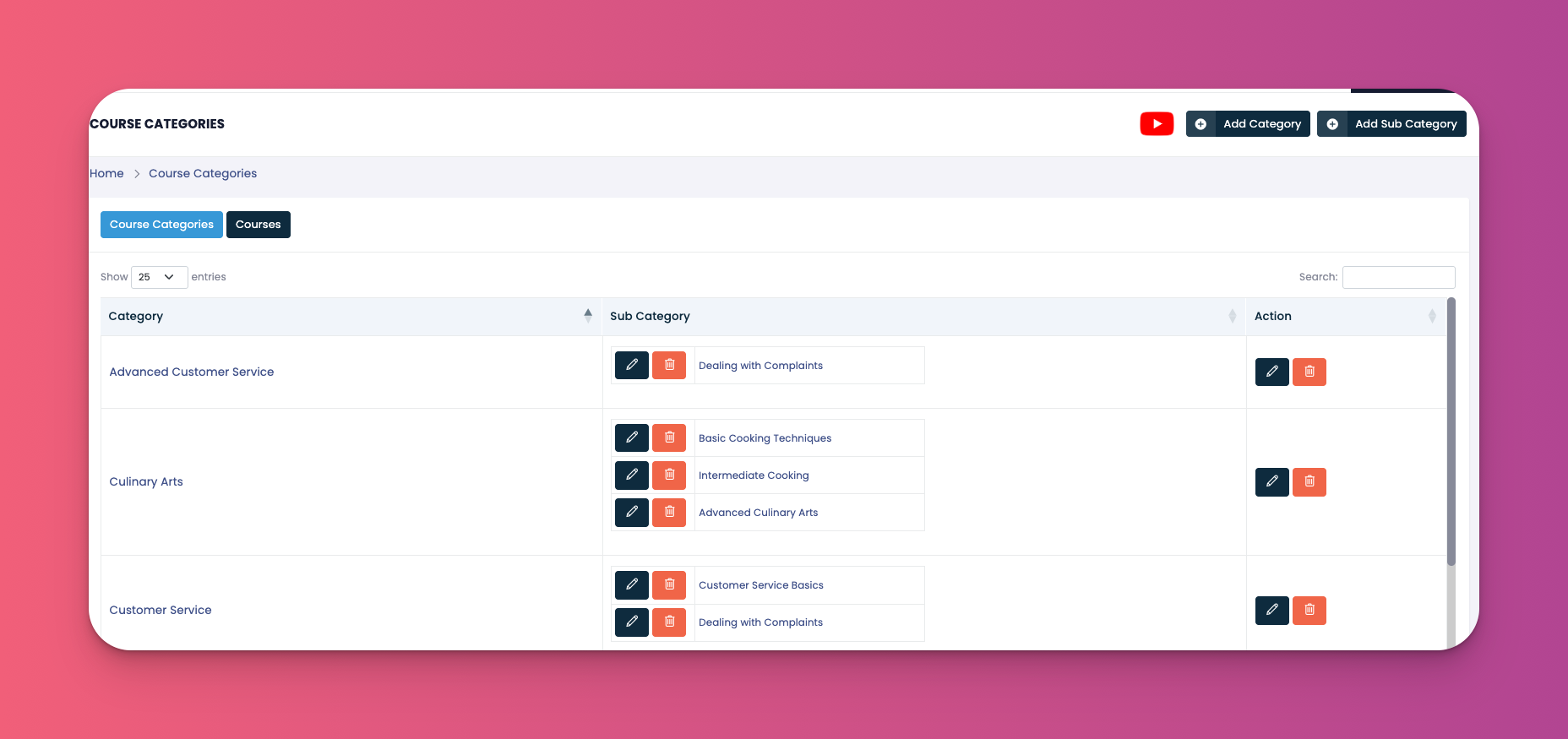
Create and organize Course Categories and Subcategories
Add/edit course names
Upload modules and attach interactive content
Navigate to e-Learn → Add Courses → Course Categories
Click Add Category
Enter the category name and save
Select the newly created category
Click Add Sub Category
Enter the subcategory name and click Create
Switch to the Courses tab next to Course Categories
Find the subcategory you want to work with
Under Action, click Add/Edit Module
In the pop-up:
Enter the Module Name
Click the 🎥 Interactive Content icon
Select one of the following from the content type dropdown:
Add Text
Embed Link
Direct Link
Quiz
Interactive Content
Paste the content link (e.g., an S3 video link) or fill in the required fields
After uploading the content, click the Pen icon to edit details such as:
Title
Description
Attachments (if any)
Use clear titles and categories to keep your course library organized.
Interactive content increases learner engagement.
Use “Direct Link” if you’re hosting large files (like videos) externally.
Q: Can I rearrange course modules?
A: Yes, use the up/down arrows next to each module to change their order.
Q: What kind of content can I upload?
A: Text, links, video files, embedded content, quizzes, or full interactive modules.
Q: What happens when I delete a subcategory?
A: All associated courses under that subcategory will be removed as well.