The Training Progress screen gives a real-time overview of employee course statuses. It helps managers track who’s completed their learning, who is in progress, and who hasn’t started yet.
👇👇
[Training Progress ]
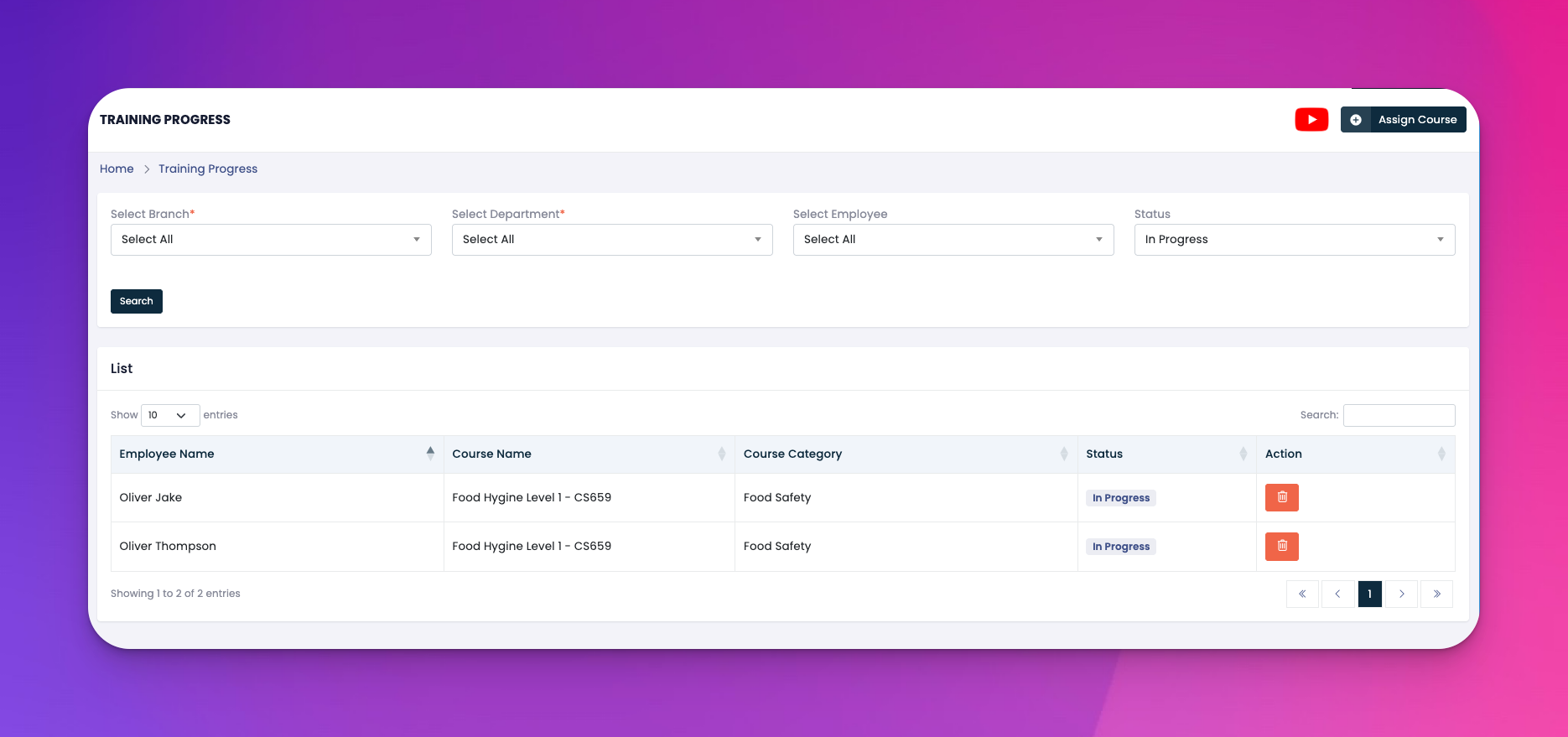
Filter by Branch
Begin by selecting the branch you want to monitor. This is required before other filters activate.
Filter by Department
Narrow results down further using the department filter (e.g., Kitchen, Front of House).
Filter by Employee (Optional)
Choose a specific employee to check their course progress individually.
Status Filter
Select from:
In Progress: Shows all employees currently working through a course
Not Started: Lists those who haven’t begun
Completed: Displays employees who have finished the course
Search Bar
Allows instant searching by name or course within the displayed list.
The lower part of the screen shows a live list including:
Employee Name
Course Name
Course Category
Status: Color-coded for easy tracking (e.g., "In Progress")
Action: A trash icon to remove training assignments if needed
Use filters together (branch + department + status) for laser-focused insights.
Remove incorrectly assigned courses with the delete button.
Regularly check this page to nudge employees falling behind.
Q: Can I export this list to Excel?
A: Currently, this screen is for on-platform review only. Export features are available under the Reports section.
Q: If a course is deleted from this screen, will it remove employee progress?
A: Yes, it will reset the assignment. Use with caution.
Q: How often does this page update?
A: Progress is updated in real time as users complete modules.