The Assign Course screen allows managers or admins to assign training courses to employees across specific branches, set deadlines, and filter by category or compliance requirements.
👇👇
[Assign Course]
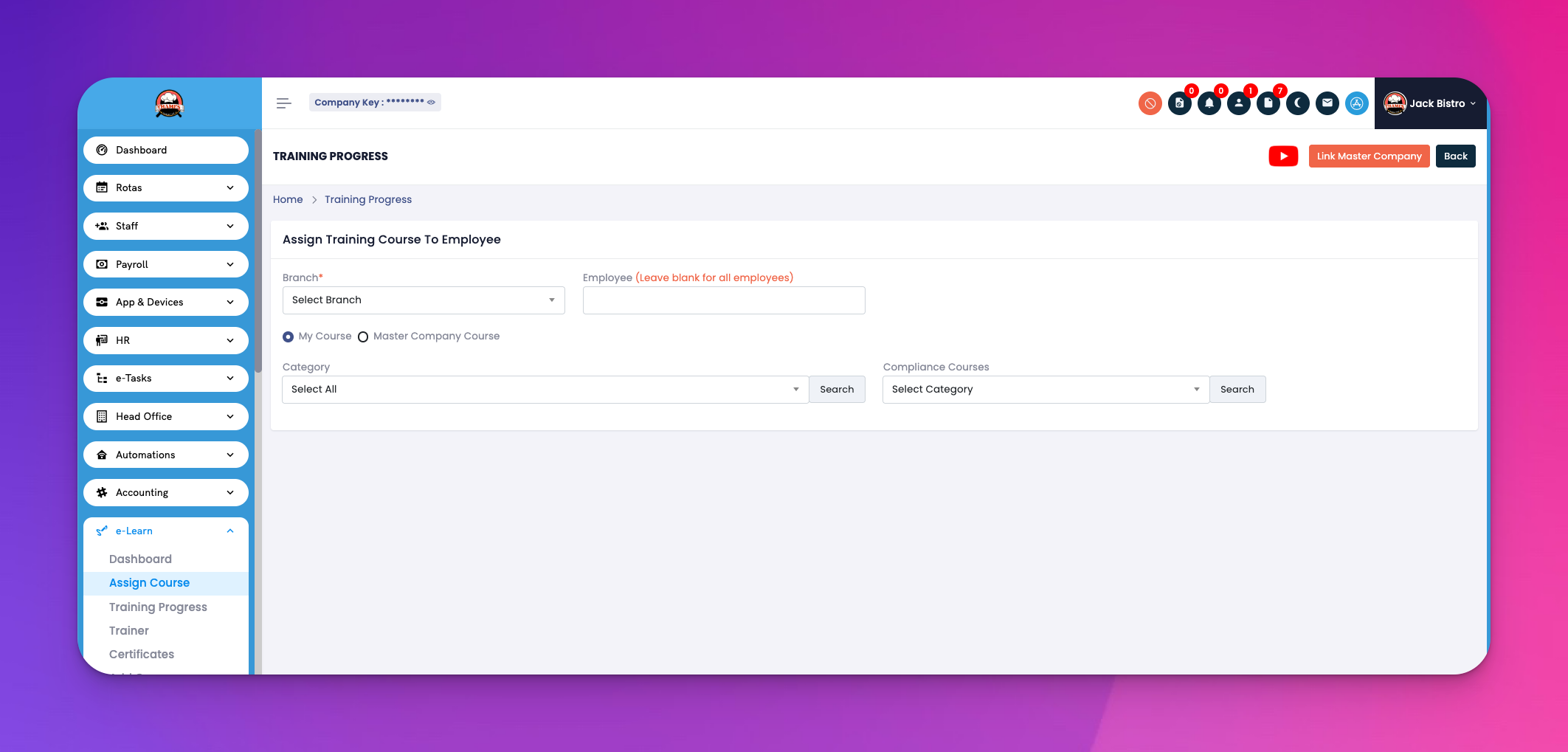
Select Branch
Choose the branch you want to assign training for using the dropdown at the top left.
Assign to Specific Employees (Optional)
If you'd like to assign courses to selected individuals, type their names in the Employee field.
(Leave blank to assign to all employees in the selected branch.)
Choose Course Source
My Course: Courses created specifically by your company.
Master Company Course: Predefined courses provided by eHubt.
Filter by Category
Use the Category dropdown to narrow down the type of training (e.g., Food Safety, Compliance, Customer Service).
Compliance Courses Filter
Quickly filter compliance-related trainings with this dropdown.
Course List Table
Displays all available courses, their assigned category, and current deadline.
Use checkboxes to select which courses to assign.
Set Deadline
Each course has a default deadline (in days).
Click Edit next to any course to change the deadline before assigning.
Assigning multiple courses at once? Use the checkbox and assign them together.
Use filters when managing large course libraries.
Deadline days help ensure employees complete courses on time — make sure they're realistic!
Q: Will employees receive notifications when a course is assigned?
A: Yes, if notification settings are enabled in the app settings.
Q: Can I assign one course to multiple branches?
A: Not from this screen. You'll need to switch branches and repeat the assignment.
Q: What happens if an employee has already completed the course?
A: The system will not reassign unless explicitly selected to reassign.