The e-Learn Dashboard gives managers and admins a powerful summary of training progress across branches and course types. From compliance tracking to individual user progress, this section helps reduce support tickets by making everything visible in one place.
👇👇
[Dashboard ]
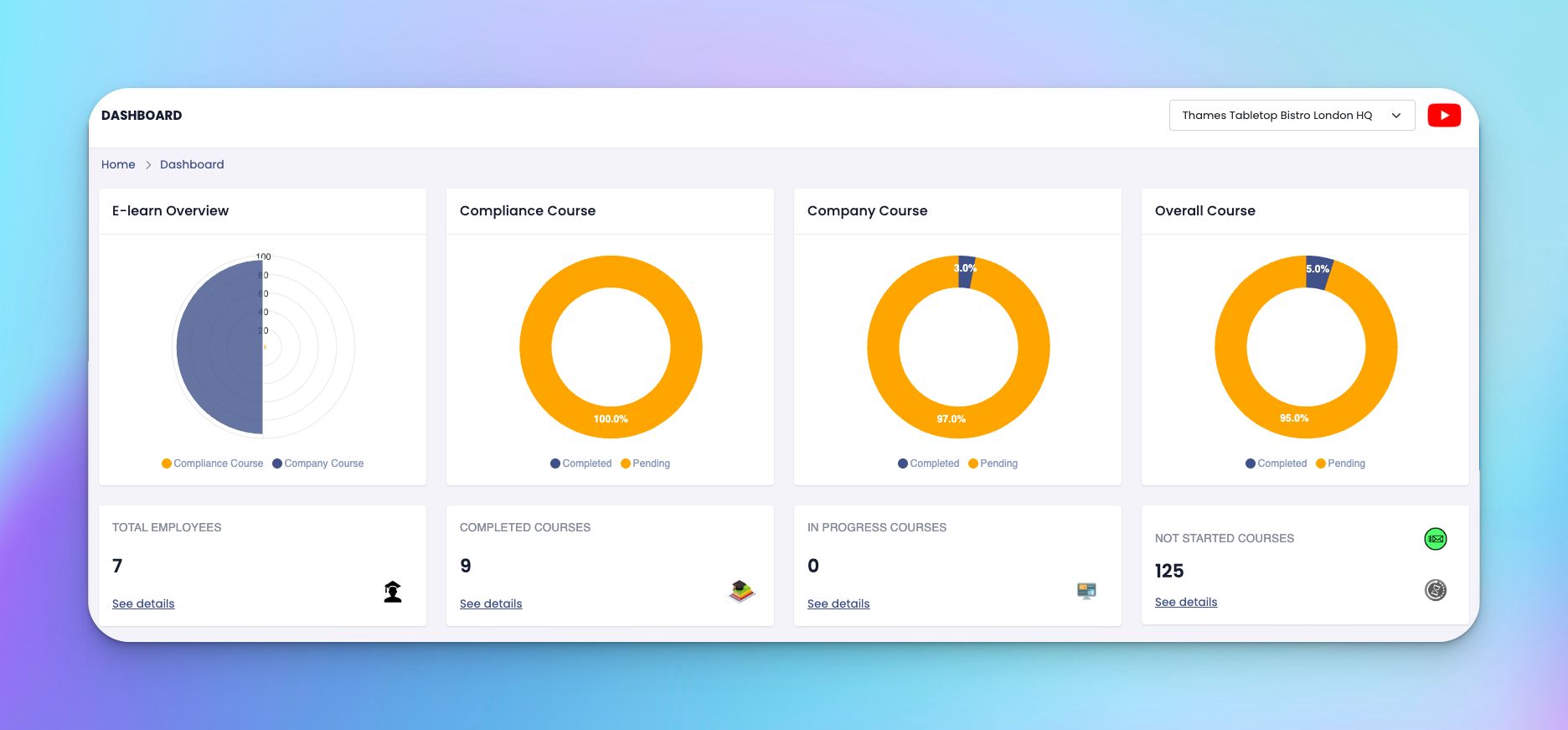
Go to: e-Learn → Dashboard
YouTube Icon – Click the red YouTube button to watch a quick video tutorial of the e-Learn module.
Branch Selector – Use the dropdown menu next to the YouTube icon to switch between branches and view specific training performance.
E-learn Overview – Radar chart comparing Compliance vs Company Courses
Compliance, Company, and Overall Courses – Visual pie charts showing completion vs pending percentages
Total Employees – Total users assigned to training
Completed Courses – Courses fully completed
In Progress Courses – Currently ongoing courses
Not Started Courses – Assigned but not yet started
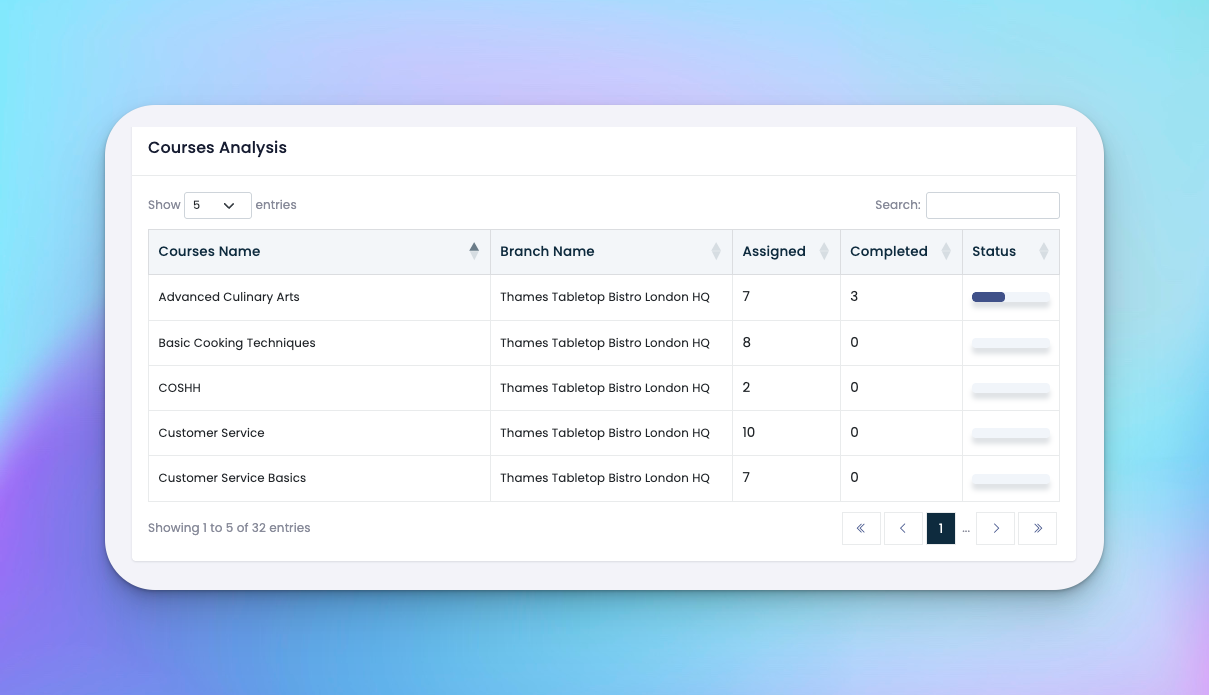
Courses Analysis – Table view showing:
Course name
Branch
Assigned users
Completed count
Visual status bar
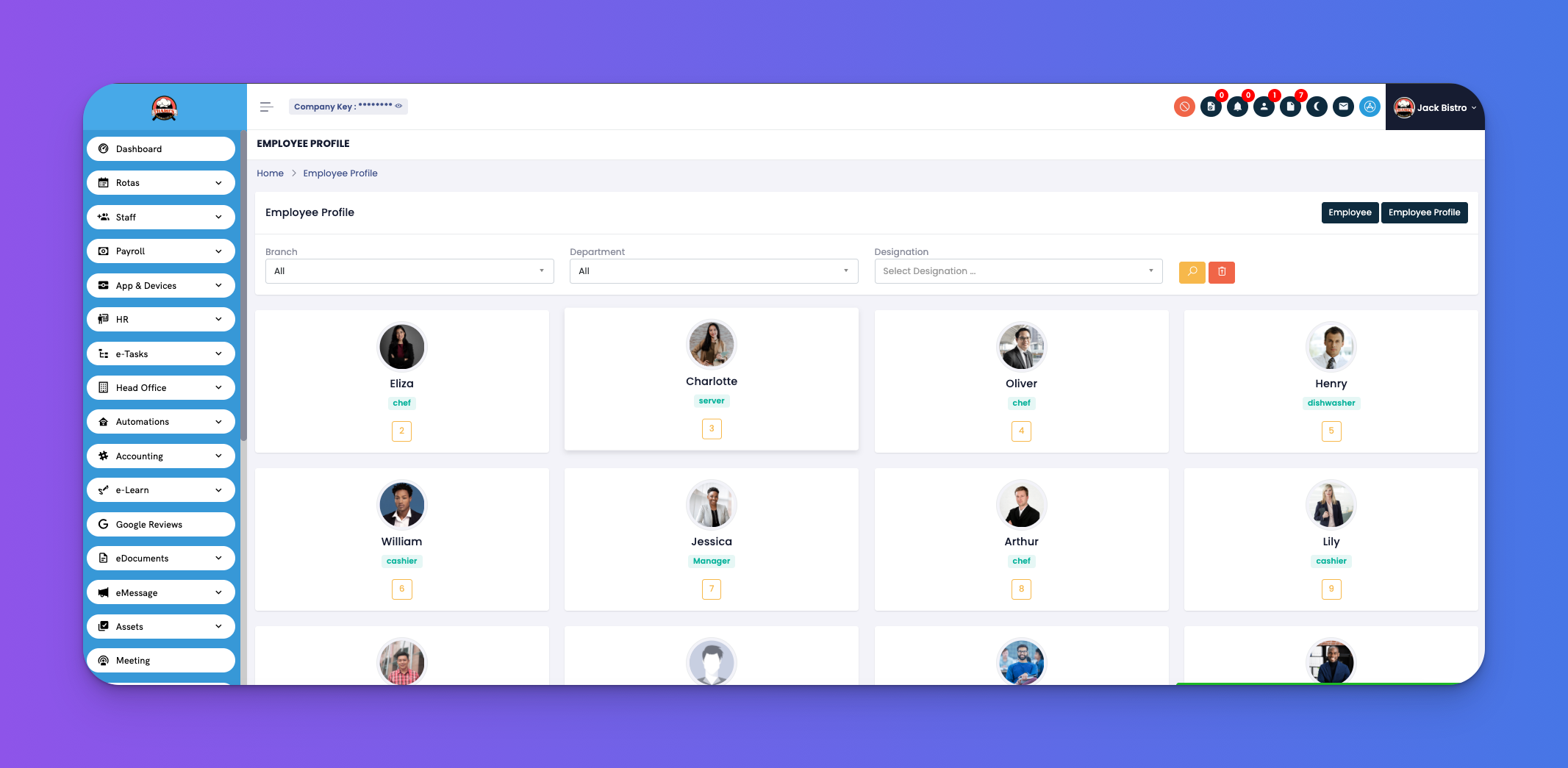
Team Members Progress – Breakdown by employee:
Member name and department
Assigned courses
Completed courses
Pending courses
Always use the branch selector before analysing performance for a specific location
Encourage learners to complete pending courses shown in orange
Use the "See details" links to drill down into specific metrics
Q: What is the YouTube button for?
A: It links to a short video tutorial on how to use this section effectively.
Q: Can I switch between branches?
A: Yes, use the dropdown menu next to the YouTube icon to view training data per branch.
Q: Why are courses showing as pending?
A: It means they’re assigned but not marked as completed yet.