The Sales section under the Accounting module allows you to manage, track, and report all income sources across different branches. Whether it's in-store POS sales or third-party deliveries like Uber Eats or Just Eat, this section ensures all figures are recorded and categorized properly.
👇👇
[Sales]
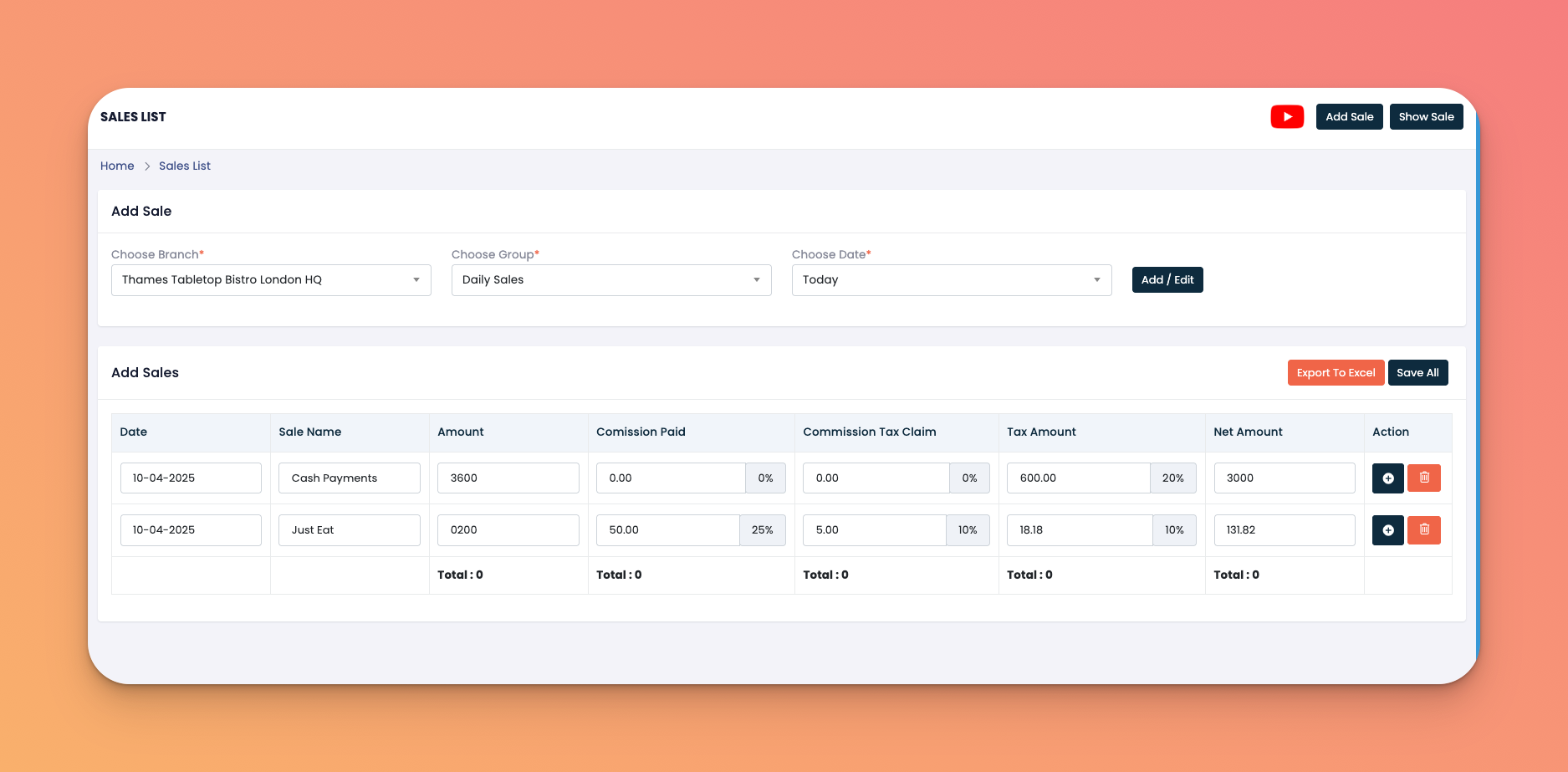
Go to: Accounting → Sales
Sales List Form – Add sales entries manually by selecting the branch, group, and date.
Show Sale – Filter and display recorded sales for a selected period.
Data Columns:
Date
Sale Name
Amount
Commission Paid (%)
Commission Tax Claim
Tax Amount
Net Amount
Actions – Edit, comment, view, or delete entries
Navigate to Accounting → Sales
Select:
Branch
Group (e.g., Daily Cashup)
Date (Today, Yesterday, or Custom)
Enter the relevant fields for each sale:
Sale Name
Amount
Commission Details
Tax Details
Click Save All or Export to Excel
✅ Tips
Always assign a sale to the correct group for reporting accuracy.
Use the "Show Sale" feature to review sales by date or status.
Double-check commission and tax inputs to avoid reporting errors.
Q: Can I edit a sale after saving it?
A: Yes, click the ✏️ icon next to any entry to make changes.
Q: Can I export all sales data?
A: Absolutely. Use the Export to Excel button for easy reporting.
Q: What is “Commission Tax Claim”?
A: It refers to the tax deductible from the commission portion of the sale.