The Expenses section is designed to help businesses log, manage, and review their branch-wise spending in real-time. It supports accurate record-keeping, approval tracking, and audit readiness — all within eHubt’s Accounting module.
👇👇
[Expenses]
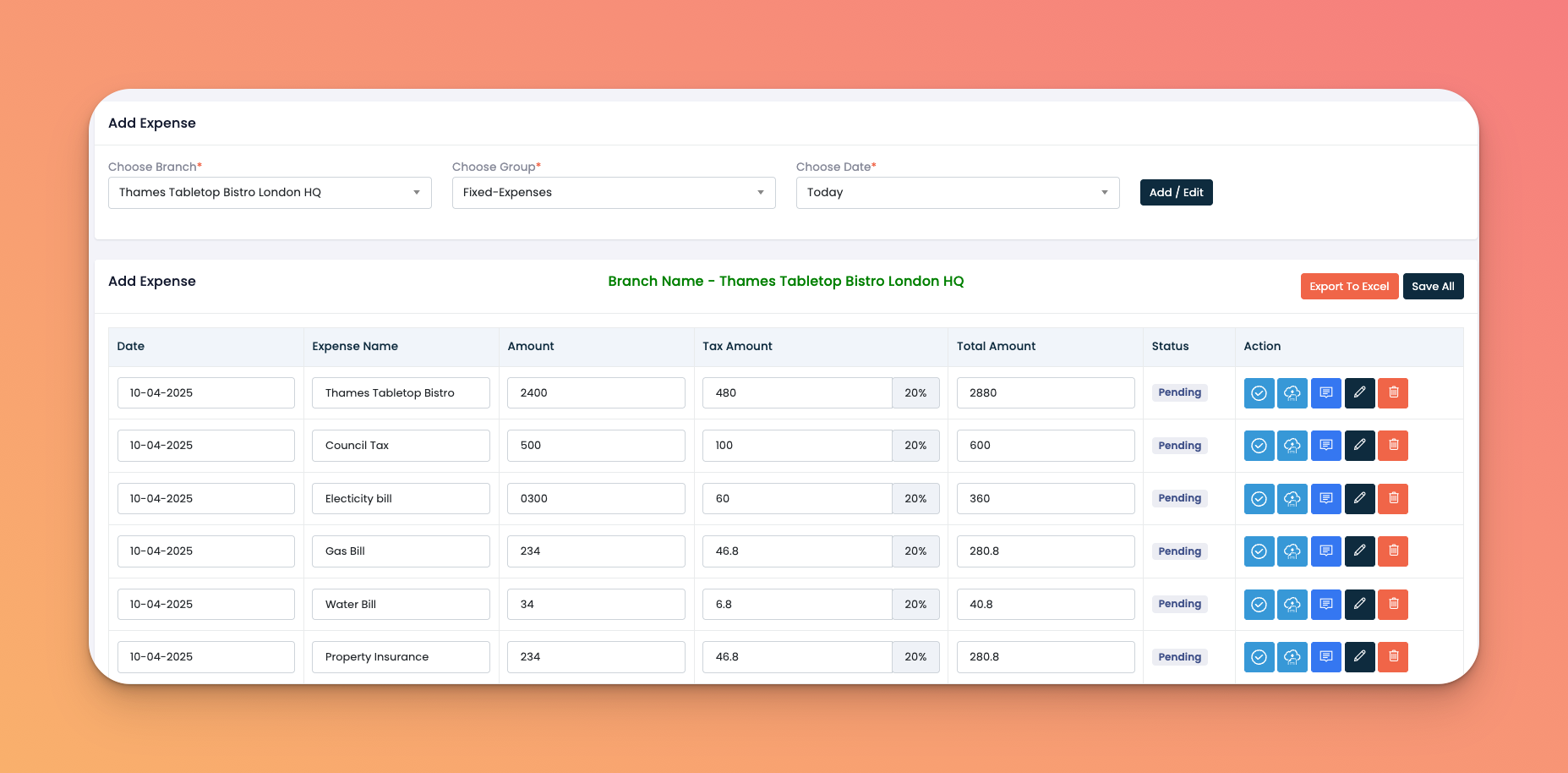
Go to: Accounting → Expenses
Select:
Branch
Group (from previously created accounting groups such as Fixed-Expenses or Miscellaneous)
Date for the expense entry
Click Add/Edit
Once added, a list of available expense names under the chosen branch/group will appear.
For each expense entry:
Set the Amount
Set the Tax Amount (auto-calculates percentage)
The Total Amount will auto-update
Click Save All once you're done.
To review saved entries:
Click Show Expense
Filter by:
Branch
Group
Date Range
Status (All, Pending, Approved, Rejected)
You’ll see a breakdown by:
Date
Expense Name
Amount
Tax
Total
Status
Action Buttons (View, Edit, Approve, Reject, Export)
Click Export to Excel to download a copy of the current filtered data.
Keep tax values consistent to ensure accurate reports.
Expenses can be approved, rejected, or marked as pending depending on access rights.
Use meaningful expense names to ensure clarity in finance audits.
Q: What’s the difference between Add and Show Expense?
A: “Add Expense” is for creating new entries. “Show Expense” is for reviewing or managing existing ones.
Q: Can I add multiple expenses at once?
A: Yes! All listed items under a branch/group/date combo are editable in one go and saved using Save All.
Q: Is tax auto-calculated?
A: The system applies percentage based on your Tax Amount input — shown next to the field.
Q: Can I edit or delete expenses later?
A: Yes, via the action buttons in the list view.