👉 Watch the full tutorial here
Attendance tablet
This video will walk you through the full process visually.
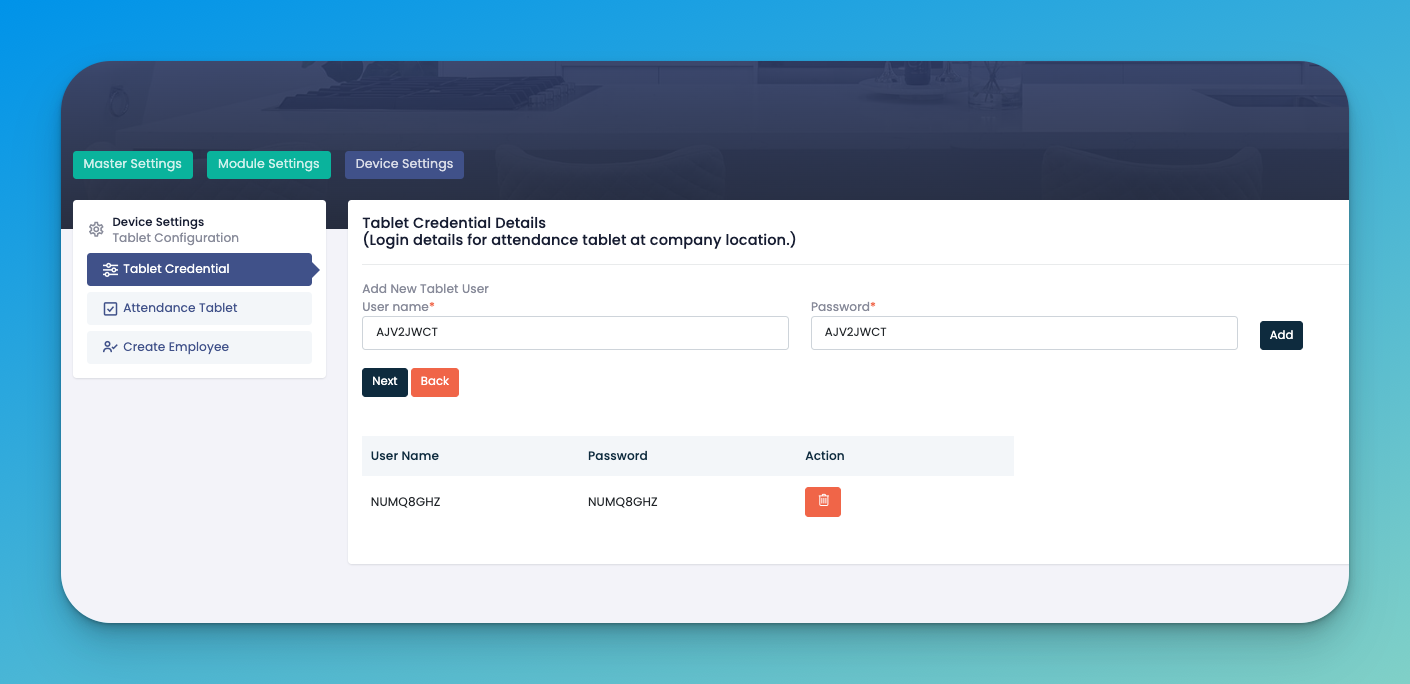
Create login credentials for tablets used for attendance.
Input:
Username
Password
Click Add and Next.
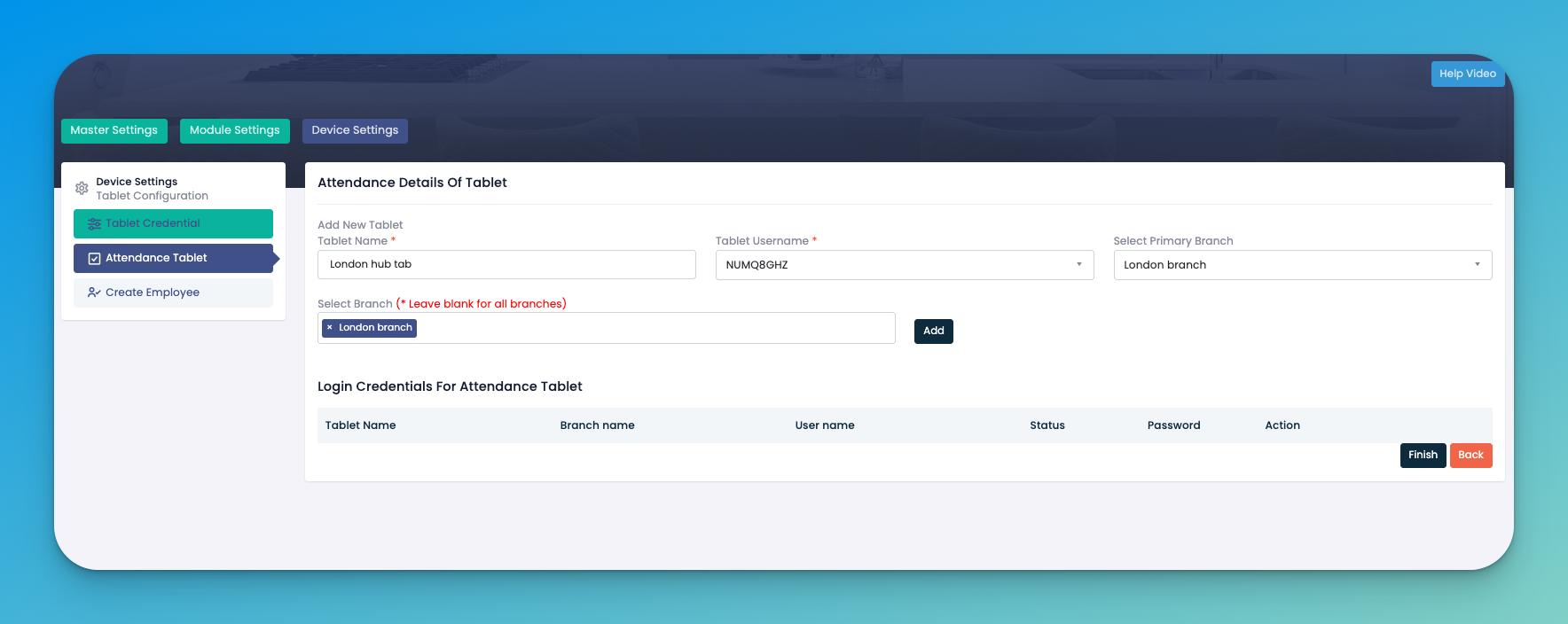
Set a tablet name (e.g., “London hub tab”)
Select the tablet username
Assign it to a branch
Click Add
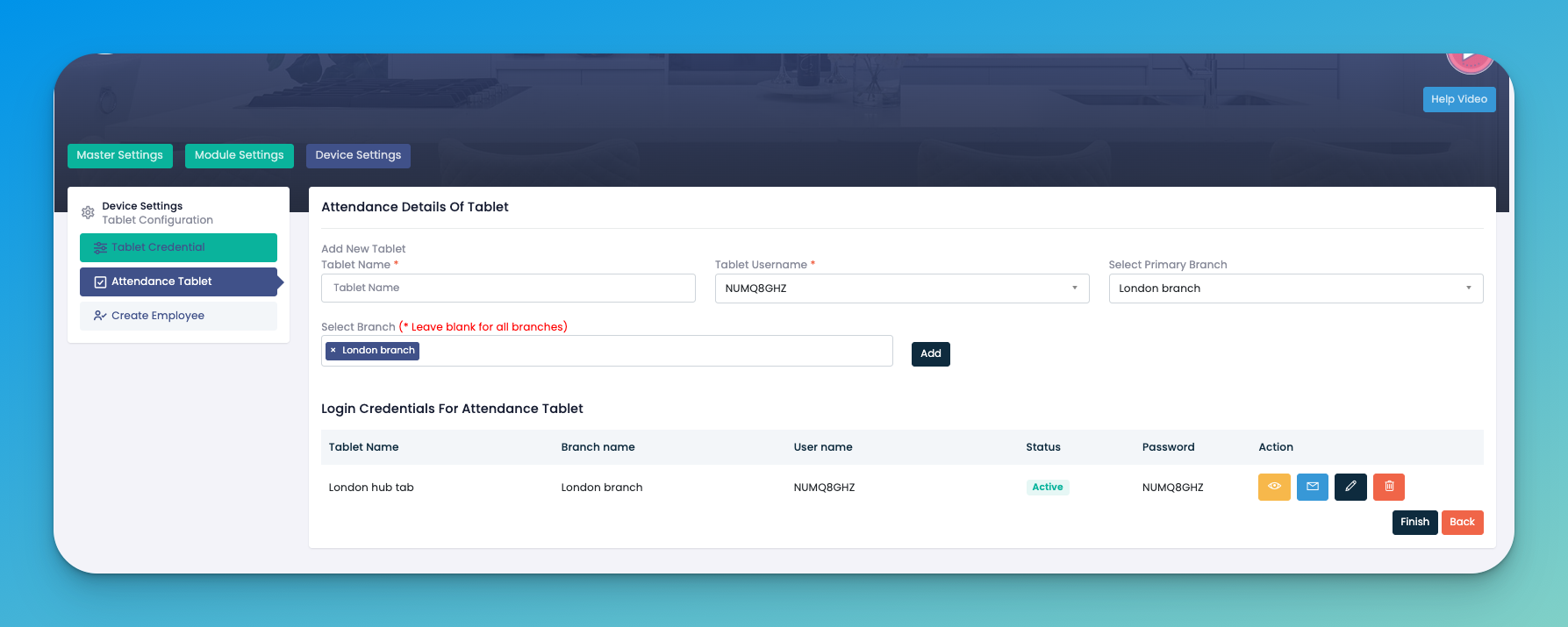
After adding, you’ll see the tablet listed with:
Tablet name
Branch name
Username
Status (Active)
Password
Action buttons allow you to:
View
Edit
Delete
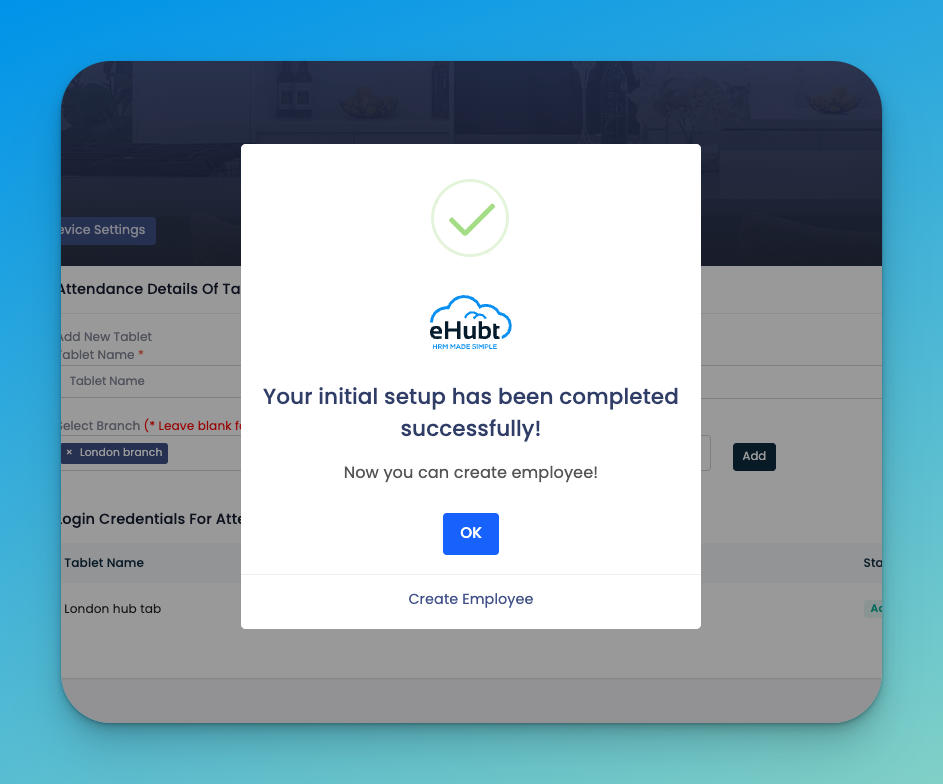
Once all steps are done, you’ll see the confirmation message:
“Your initial setup has been completed successfully! Now you can create employee!”
Use simple tablet names – Examples like "Front Desk Tablet" or "London Hub Tab" help identify them easily later.
Match the branch correctly – Attendance tablets must be assigned to the right branch for accurate clock-in records.
Keep usernames/passwords secure – These control who can log into the attendance screen — treat them like admin credentials.
Use separate logins per tablet – Don’t reuse usernames across devices to avoid data overlap.
Ensure branch assignment is not left blank – Unless the tablet is intended for all branches, always assign one.
Check status after adding – Confirm it says Active under the login list for the tablet to function.
You can always edit or delete – Made a mistake? Use the ✏️ edit or 🗑️ delete icons under Action to fix it instantly.
Test login before going live – Log in on the physical tablet after adding to confirm everything works as expected.
Finish setup to enable attendance – Employees won't be able to clock in without this being properly completed.
Q: What is a tablet credential?
It’s the login used by staff tablets (like a check-in kiosk). You create a username and password that the tablet uses to log attendance.
Q: Do I need separate credentials for each branch?
It’s optional. You can assign a tablet to a specific branch (like “London Hub Tab”) or leave it unassigned for multi-branch use.
Q: Can I set up more than one tablet?
Yes. You can create multiple tablet credentials and assign each one to a different location or department.
Q: What if I forget the tablet password?
Just go to Device Settings → Tablet Credential and delete or recreate the credential with a new password.
Q: What does the Attendance Tablet section do?
It links the tablet credential to an actual tablet name and branch. This activates the login so attendance can be tracked.
Q: How do I know setup is complete?
Once your tablet is added and linked, you’ll see a success message: “Initial setup has been completed successfully!” You can then move on to creating employees.
Q: Can employees use mobile phones instead of a tablet?
This depends on your company policy. Tablet login is for centralized check-in; mobile attendance requires manager permission via app access.