The Branch Groups section allows you to organize and manage multiple locations by grouping branches together under a common name. This is especially useful when assigning settings, automations, or features across a collection of sites (e.g., all London branches).
👇👇
[Branches]
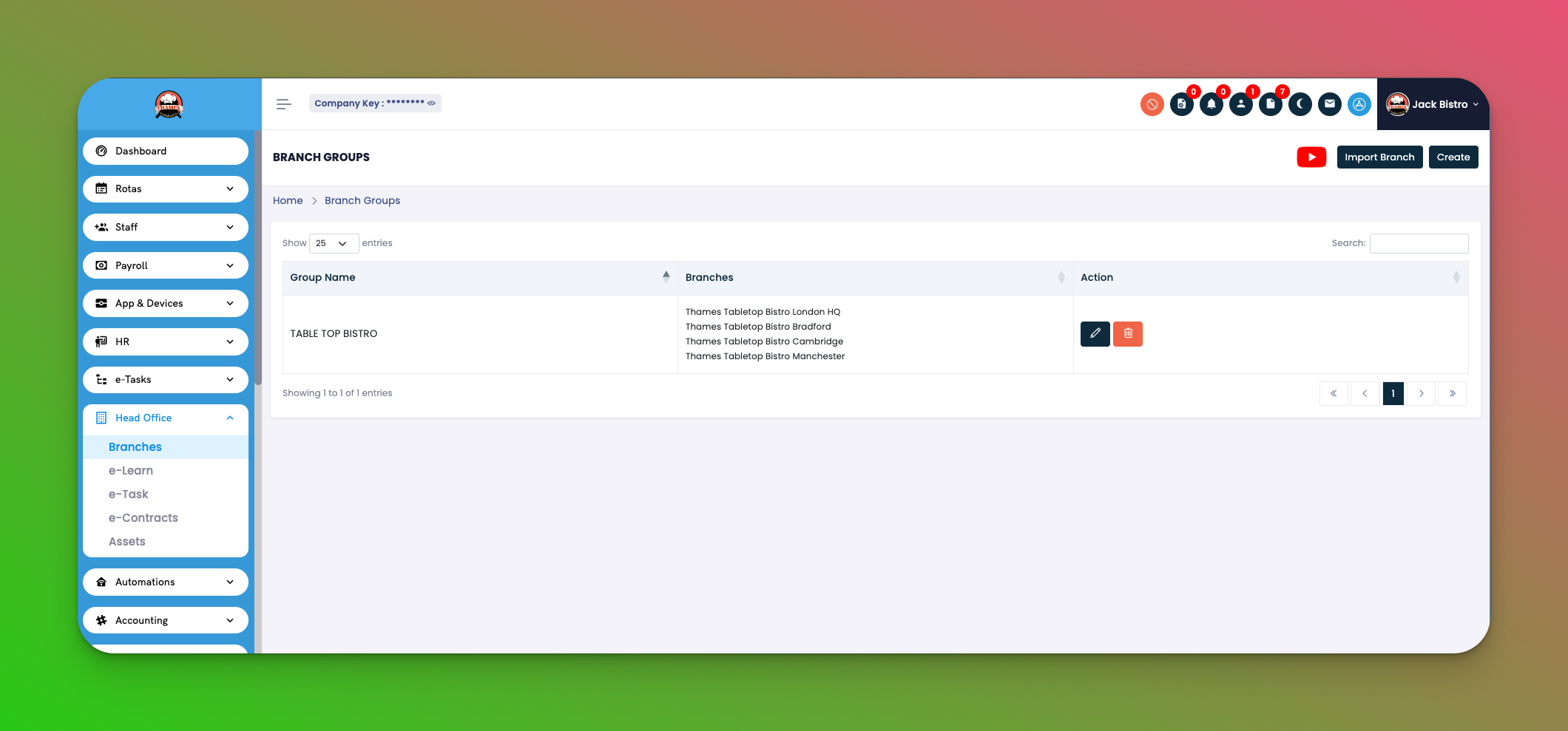
Go to: Head Office → Branches
Group Name – The title of the branch group.
Branches – List of branches assigned to the group.
Action Icons:
✏️ Edit Group
🗑️ Delete Group
Use these to update or remove existing groups.
Click the Create button on the top right.
Enter a name for your branch group.
Select multiple branches to include.
Save your group.
✅ Tips
You can group branches by location, function, or size.
Changes in the group affect how automations and sync features behave later in other modules.
Q: Can I add the same branch to more than one group?
A: No, a branch can only belong to one group at a time to avoid overlap.
Q: If I delete a group, do the branches get deleted too?
A: No, only the group gets removed. The branches remain intact and operational.
Q: Where else are branch groups used?
A: In modules like e-Task, e-Learn, e-Contracts, and Assets to distribute content or sync features.