The Checklist Hub is your central space to manage, create, and assign all checklists related to daily operations, cleanliness, safety, and compliance. Whether it's daily opening routines or monthly audits, this section ensures everything is tracked and nothing slips through the cracks.
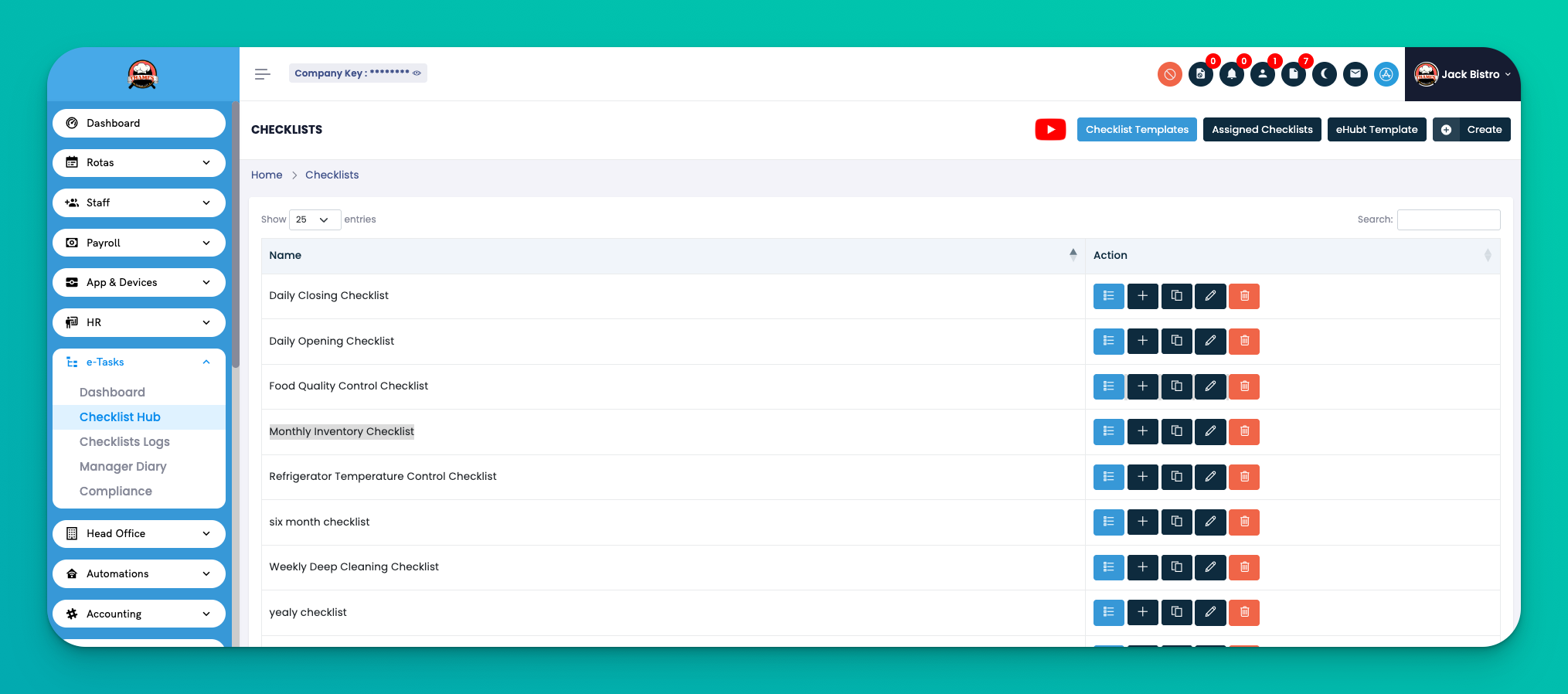
Go to: e-Tasks → Checklist Hub
You'll land on a screen that lists all your existing checklists along with action buttons for managing them.
👇👇
[Checklist Hub]
Each row in the table includes:
Name – Title of the checklist (e.g., Daily Closing Checklist)
Action – Icons to manage the checklist:
📋 View Items
➕ Assign to Branch/Employee
📄 Duplicate Template
✏️ Edit
🗑️ Delete
Here are the actions available in the top-right of the Checklist Hub:
📂 Checklist Templates – Access predefined checklist formats. Helpful for recurring tasks like daily opening, food safety, or deep cleaning.
🗂️ Assigned Checklists – View which checklists have been assigned to branches or employees.
🧩 eHubt Template – Load system-suggested templates based on best practices.
➕ Create – Start a new checklist from scratch.
✅ Tips
Use Assigned Checklists to quickly audit checklist coverage across your branches.
The eHubt Template is a great starting point if you're unsure what to include.
Checklist Templates help save time by standardizing your routine processes.
You can assign any checklist to specific branches, departments, or employees using the ➕ icon.
Checklists can be duplicated for faster creation of similar checklists.
Q: Can I assign the same checklist to multiple branches?
A: Yes, use the ➕ assign icon to push a checklist to multiple locations.
Q: What happens if I delete a checklist that’s in use?
A: It will be removed from future scheduling, but logs of previous submissions will remain in the Checklist Logs section.
Q: Can employees fill out checklists on their phones?
A: Yes, if permissions are enabled in the App & Devices > App Settings area.
Q: Can employees fill out checklists on their phones?
A: Yes, if permissions are enabled in the App & Devices > App Settings area.