The Leave Management module streamlines the leave request, approval, and tracking process across the organization. It consists of two main parts: Leave Requests and Leave Status Reports.
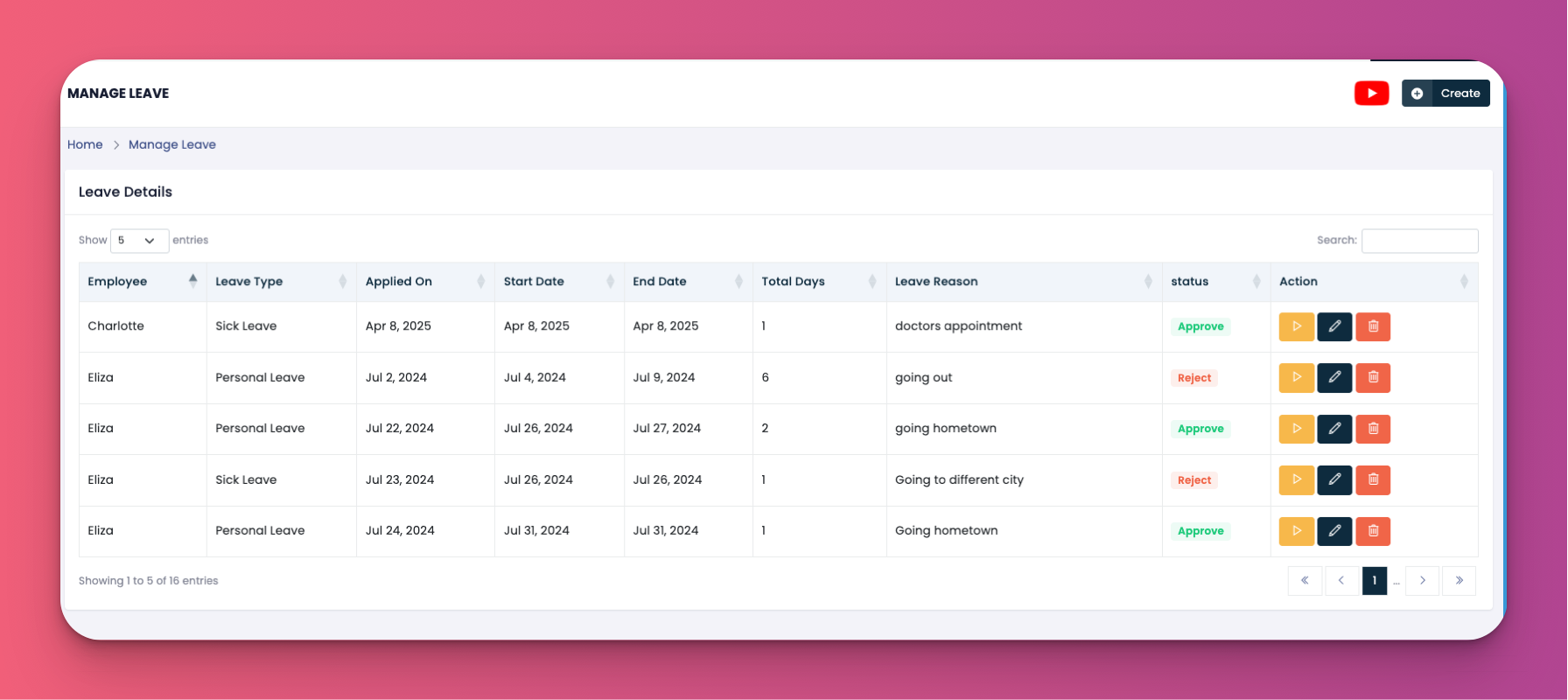
This section allows HR and managers to view, approve, reject, or modify employee leave applications.
View all applied leaves by employees
Take action: Approve / Reject / Edit
View full leave details, including reason and total days
Add remarks or upload related documents
Employee name
Leave type (Holiday, Sick Leave, etc.)
Applied date
Start and end dates
Total days requested
Leave reason
Leave status: Pending, Approved, or Rejected
🟡 View Details – Opens a summary popup showing all leave fields and allows entering an approval/rejection reason.
✏️ Edit – Modify leave type, dates, leave reason, upload documents, or mark as half-day.
➕ Create – Add a new leave for any employee with all relevant fields including reason, type, date, and supporting files.
This report provides a snapshot of leave usage, categorized by month or year. It tracks and breaks down leaves by type and approval status.
Month / Year
Branch
Department
🗓️ Duration: Displays the selected period.
✅ Approved Leaves: Count of sanctioned requests.
⌛ Pending Leaves: Requests awaiting action.
❌ Rejected Leaves: Declined requests.
Employee ID & Name
Approved Leaves (clickable view)
Rejected Leaves (clickable view)
Pending Leaves (clickable view)
Clicking on any count opens a detailed popup with leave type, reason, dates, and total days.
👇👇
[Manage leave]
Q: Can I upload documents with leave requests?
A: Yes, you can upload files such as medical certificates or travel proofs during leave creation or while editing.
Q: Can I assign leave on behalf of staff?
A: Yes, use the Create button to enter details manually.
Q: Can I approve multiple leave requests at once?
A: Currently, approvals are processed one at a time to maintain accuracy and optional comments.
Let me know when you're ready for the next section or if you'd like to adjust the wording!