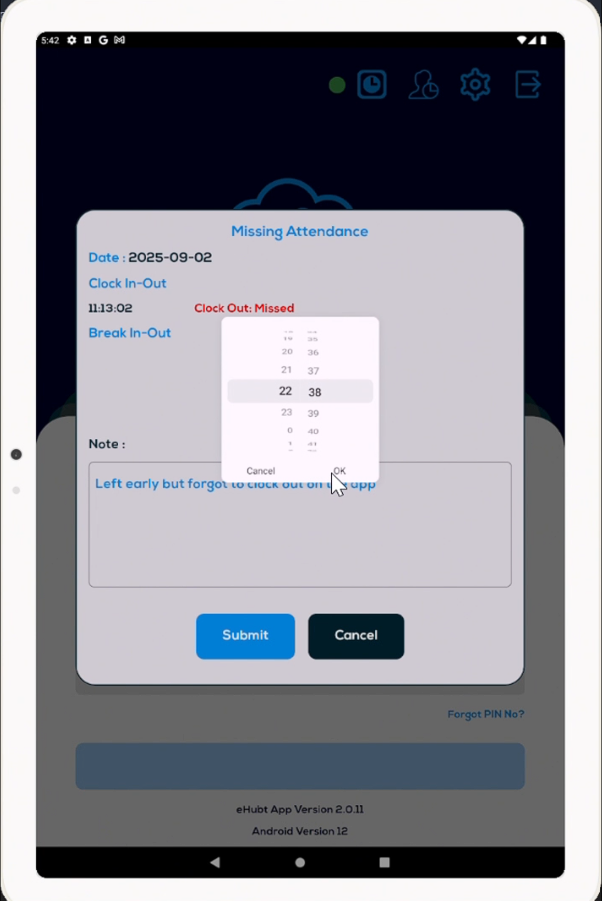
Tablet Prompt: On their next login to the attendance tablet, the system asks for the missing clock-out time.
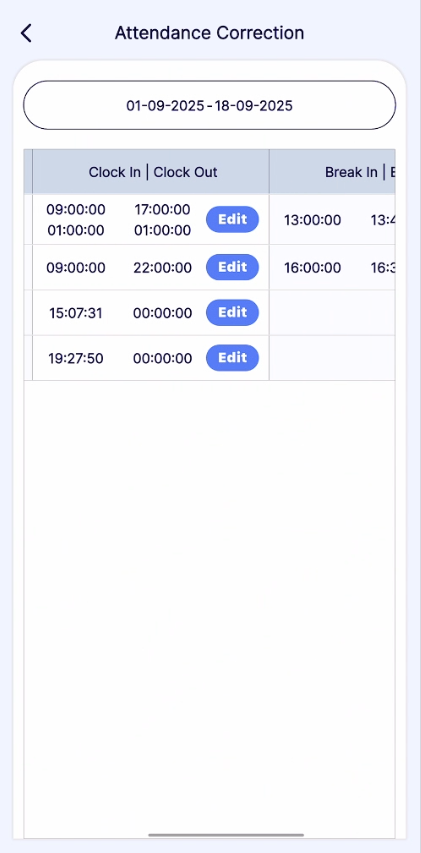
Employee App: From the Attendance section, employees can go to Attendance Correction, enter the corrected time, add a reason, and submit.
👉 Watch the full tutorial here:[Attendance Clock-Out Settings]
This video will walk you through the full process visually.
This section allows you to control how employees are clocked out automatically, handle missed punches, and manage attendance corrections.
Navigate to: Attendance Tablet → Settings → Attendance Exceptions
There are four main parts:
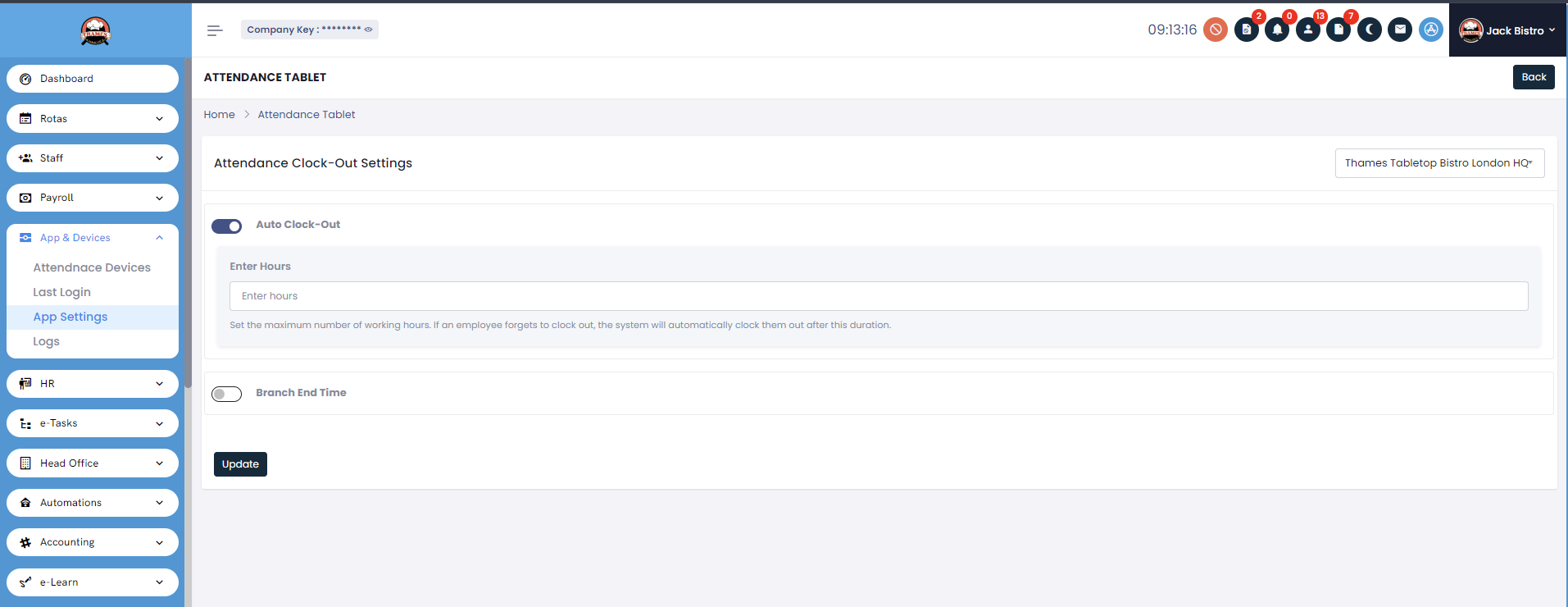
Automatically clocks out employees after a set number of hours if they forget to clock out manually.
Fields Included:
Set Hours – Maximum working hours allowed (default is 14 hours).
ℹ️ Hover Info
Ensures employees don’t remain clocked in longer than intended. Change this if your business day is shorter or longer.
✅ Tips
Keep default (14 hours) as a safety net.
Adjust to match your longest shift, such as 11 or 12 hours.
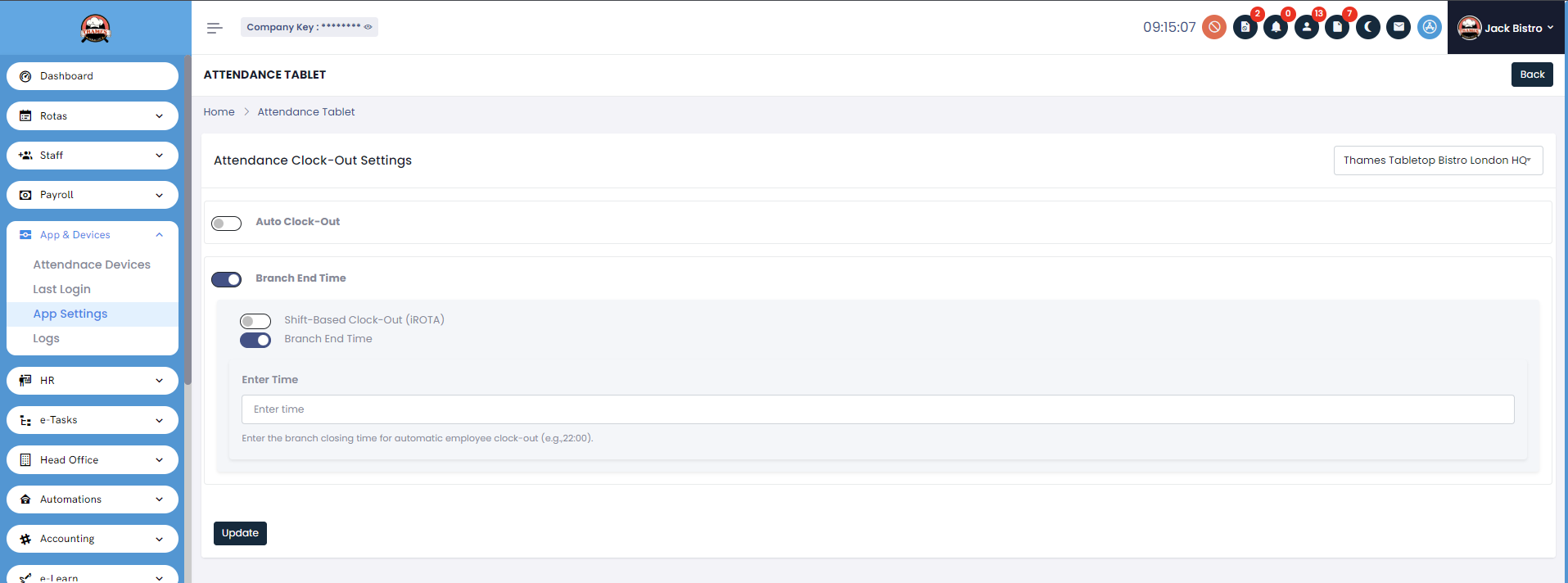
Automatically clocks employees out when the branch closes.
Options Available:
Shift-Based Clock-Out (iROTA): Employees are clocked out at their scheduled shift end time in iROTA.
Fixed Closing Time: Employees are clocked out at a fixed branch closing time, such as 22:00.
Fields Included:
Enter Time – Set the closing time in 24-hour format.
ℹ️ Hover Info
Useful when you want all employees clocked out at the same closing time or based on scheduled rota shifts.
✅ Tips
Use Shift-Based Clock-Out if you manage shifts through iROTA.
Use Fixed Closing Time if all staff leave together.
When a clock-out is missed, the system sends a temporary clock-out email with shift details.
Employees can request a correction in two ways:
Tablet Prompt: On their next login to the attendance tablet, the system asks for the missing clock-out time.
Employee App: From the Attendance section, employees can go to Attendance Correction, enter the corrected time, add a reason, and submit.
✅ Tips
Encourage staff to always provide a clear reason, such as “Forgot to clock out at shift end.”
Corrections keep records accurate and transparent.
Managers are responsible for approving or rejecting correction requests.
Steps:
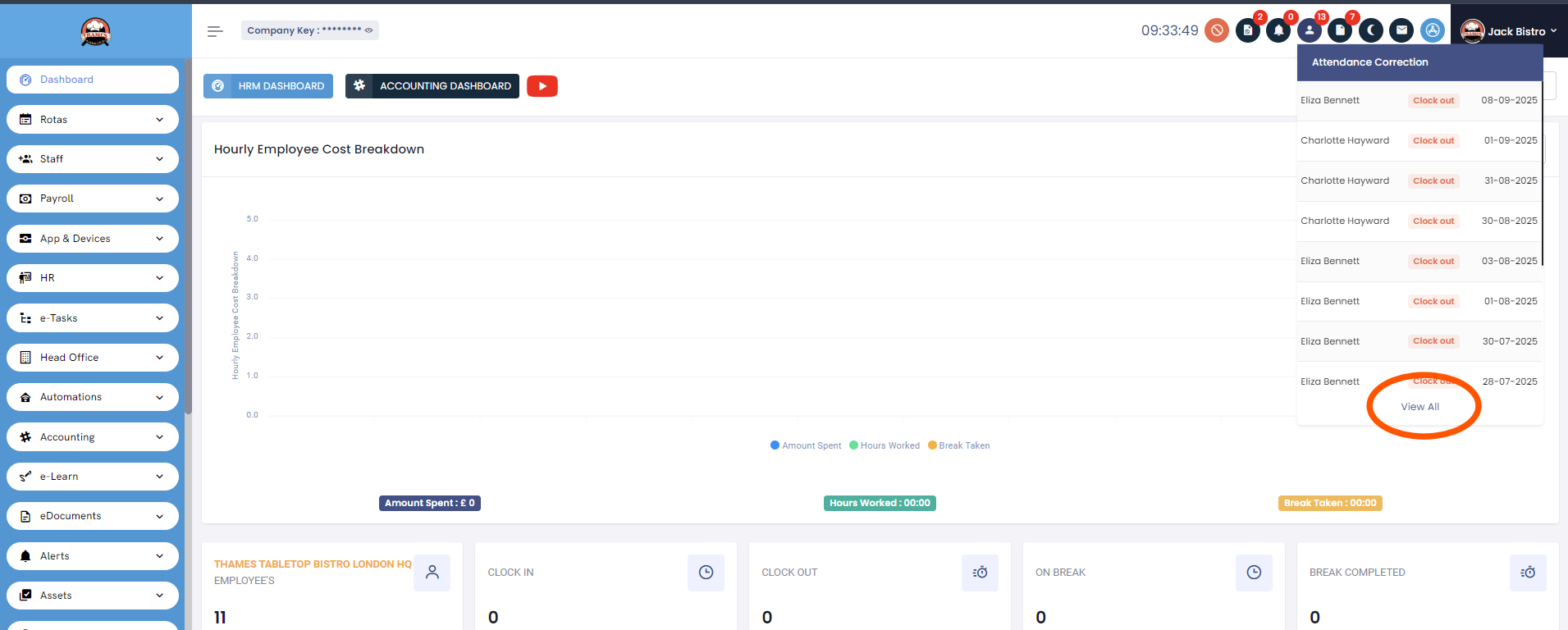
Go to the Dashboard.
Click on Attendance Correction.
Select View All to see all submitted requests.
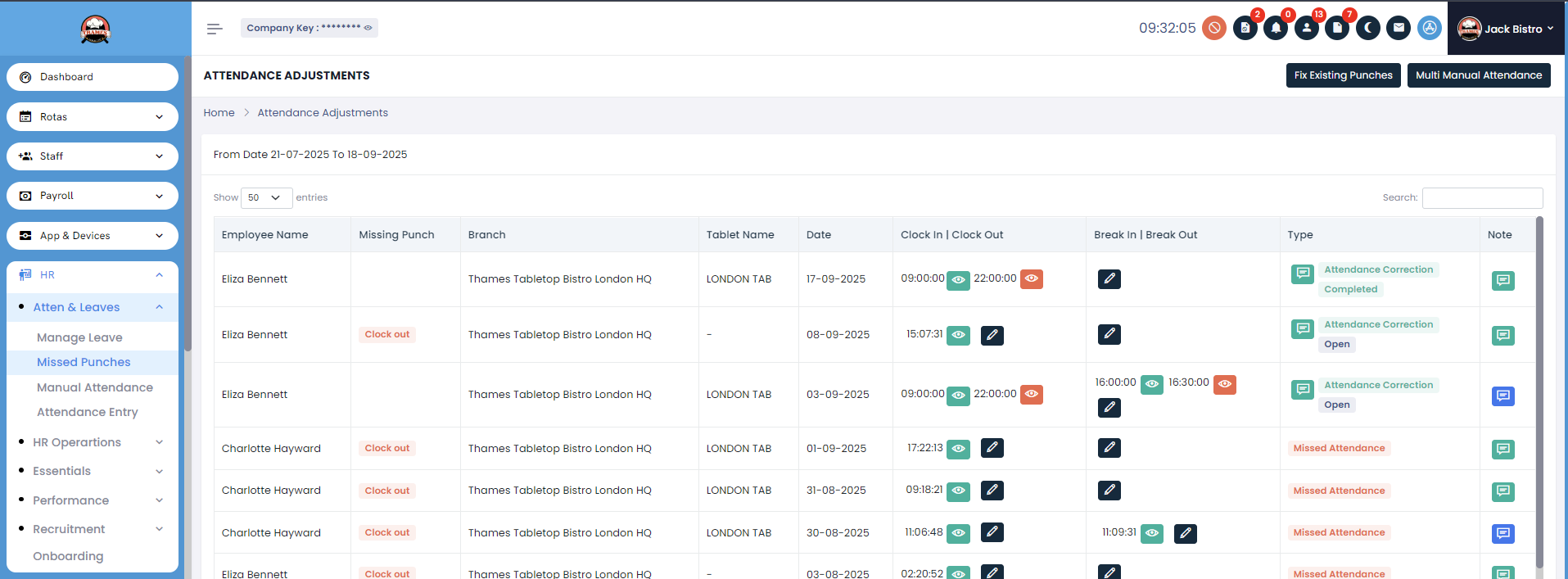
Review each request, update times if needed, or reject.
✅ Tips
Always check the employee’s comment and shift details before approving.
Approved corrections update attendance records instantly.
Conclusion
With Auto Clock-Out, Branch End Time, and the correction workflow, attendance records remain fair, consistent, and accurate for both employees and managers.