⏰ Submitting an Attendance Correction
🎥 Video Tutorial
👇👇
[Attendance Correction]
Easily request a correction if you missed clocking in or out using the eHubt Mobile App.
🔍 Where to Find It
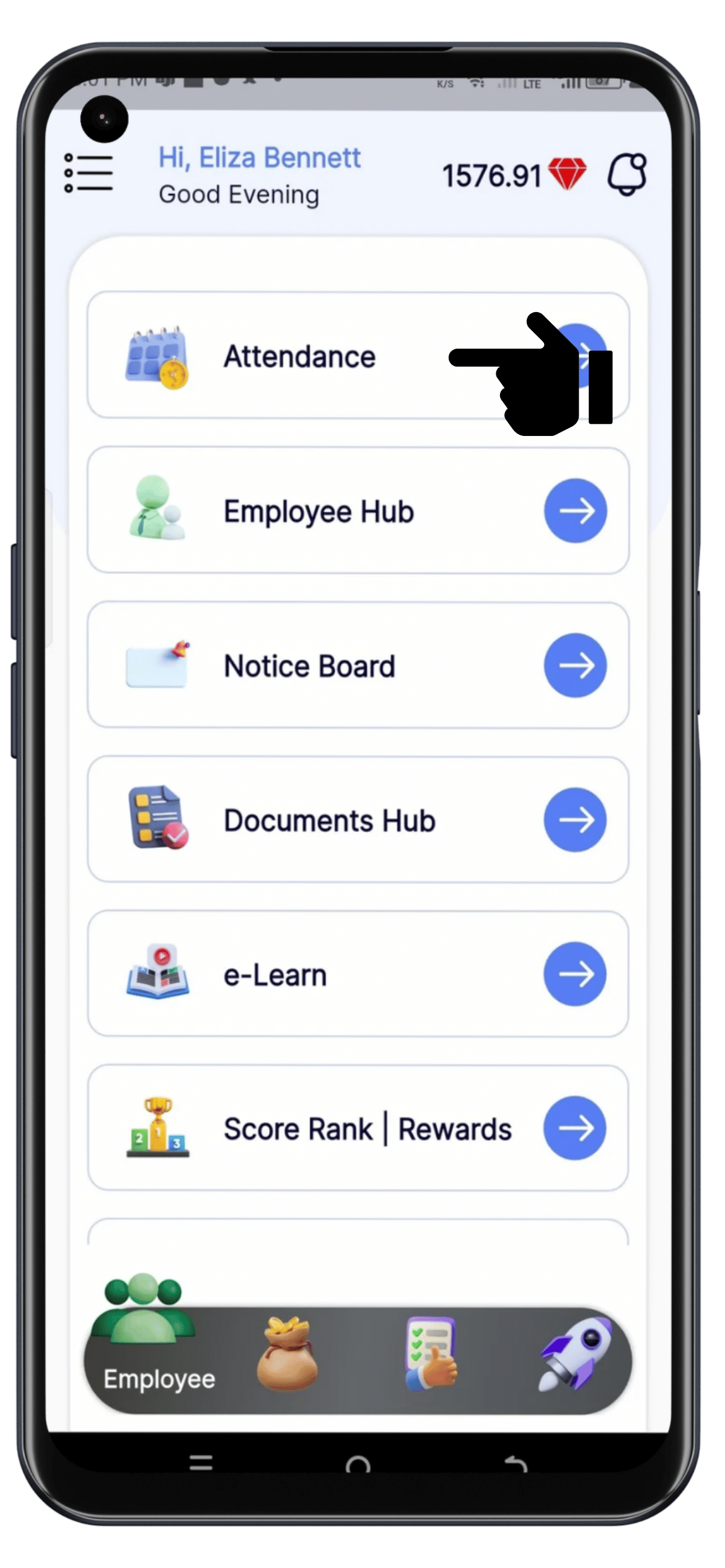
Attendance
Open the eHubt Employee App and tap Attendance from the main menu.
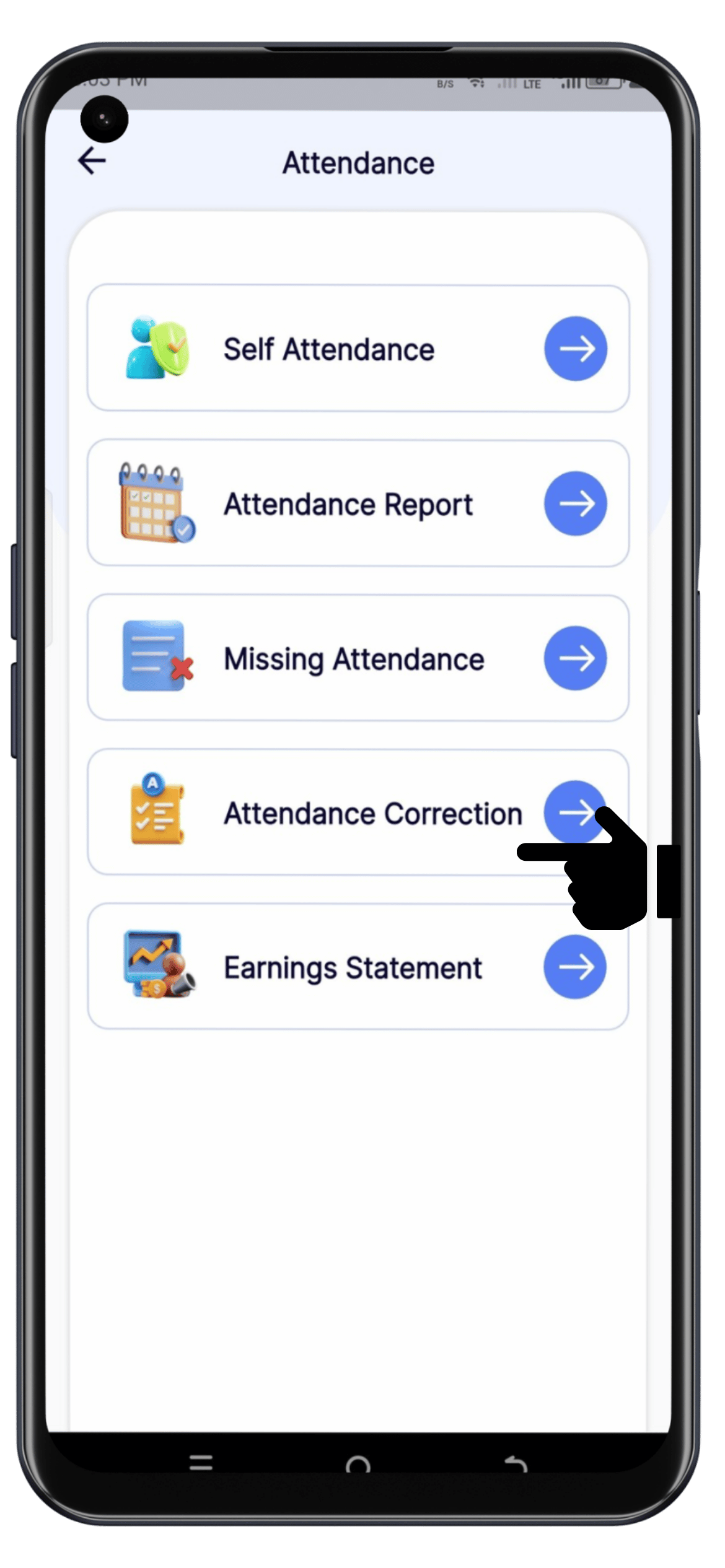
Attendance Corrections
Select Attendance Corrections from the Attendance section.
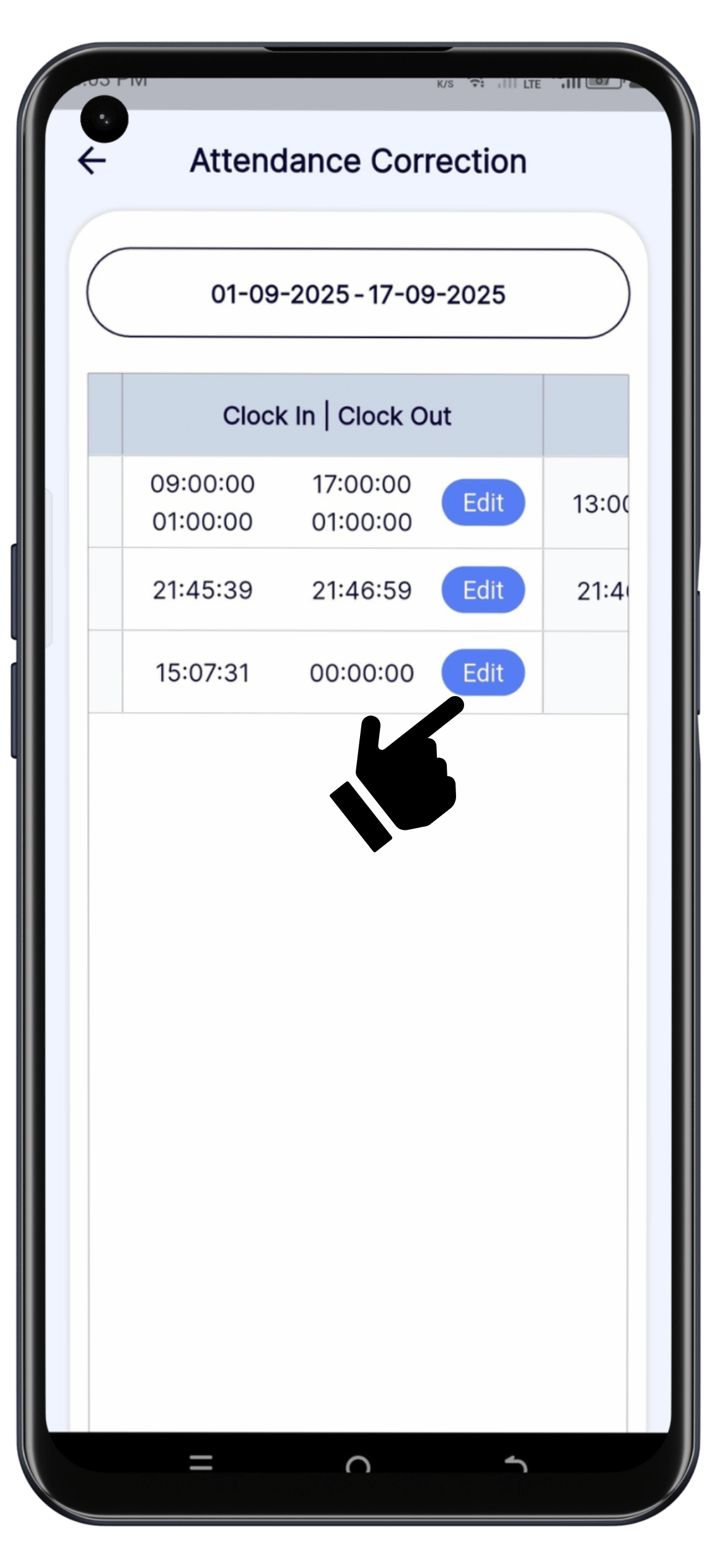
⚙️ How to Submit a Correction
First, you will see the attendance details already recorded in the system.
You can edit these details and add the correct ones according to your actual working time.
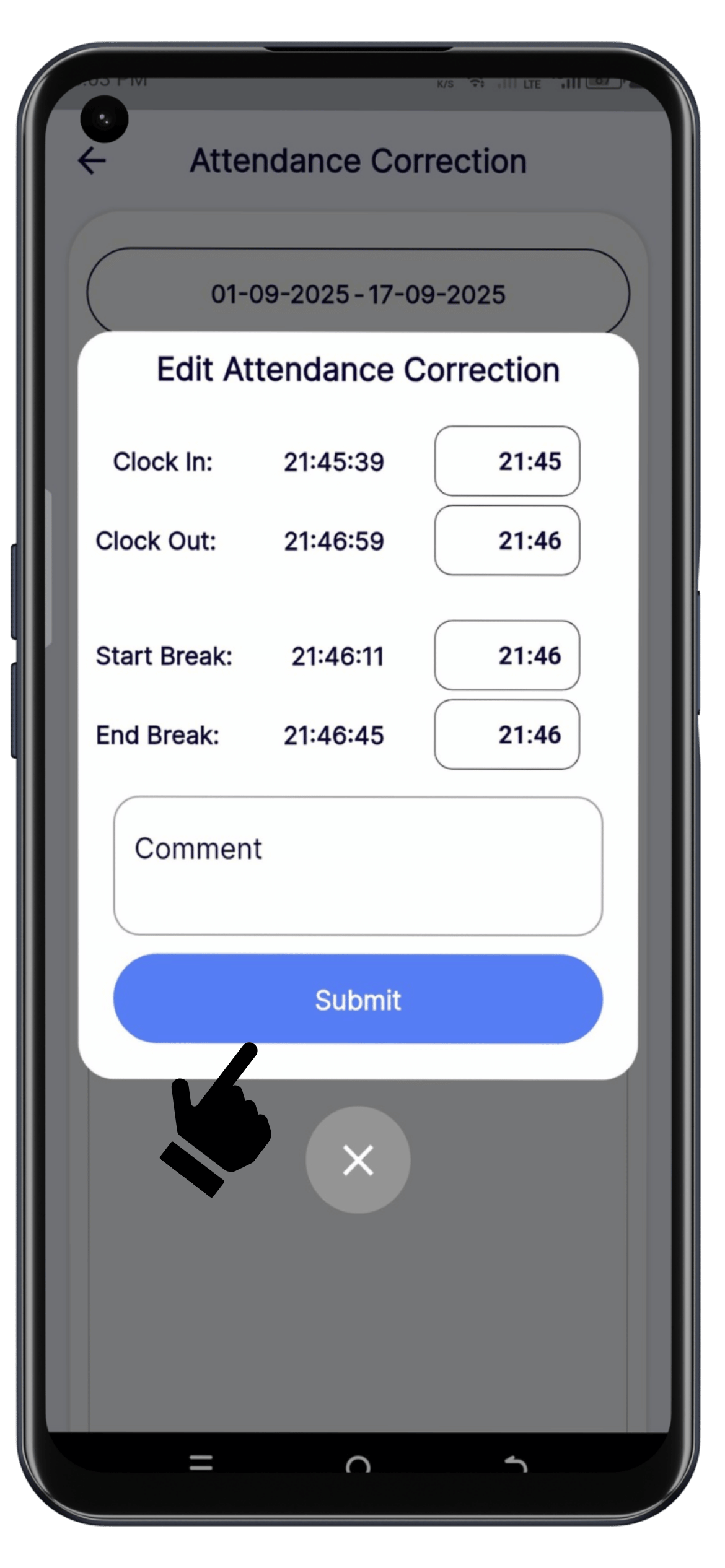
Next, add a comment explaining the reason for the correction.
Finally, click Submit to send your request for approval.
📋 What You’ll See
Date – The date of the correction request.
Clock In / Clock Out – The corrected times you entered.
Comment – Your note for the manager.
Status – Whether the request is pending, approved, or rejected.
❓ Need Help?
If you have any questions, visit our Help Center at desk.ehubt.io or contact your manager.
Do you want me to also create the introductory paragraph in a more friendly, guiding tone (like: “Sometimes employees forget to clock in or out. With Attendance Corrections in the eHubt app, you can easily fix this…”) to make the article feel less technical?