🛠️ Settings Overview The Settings section centralises all your configuration options under five tabs: Dashboard Settings, Company Settings, Slack Settings, Telegram Settings, and Google Calendar Settings.
Click Settings in the left menu
Select the tab corresponding to the settings you wish to update
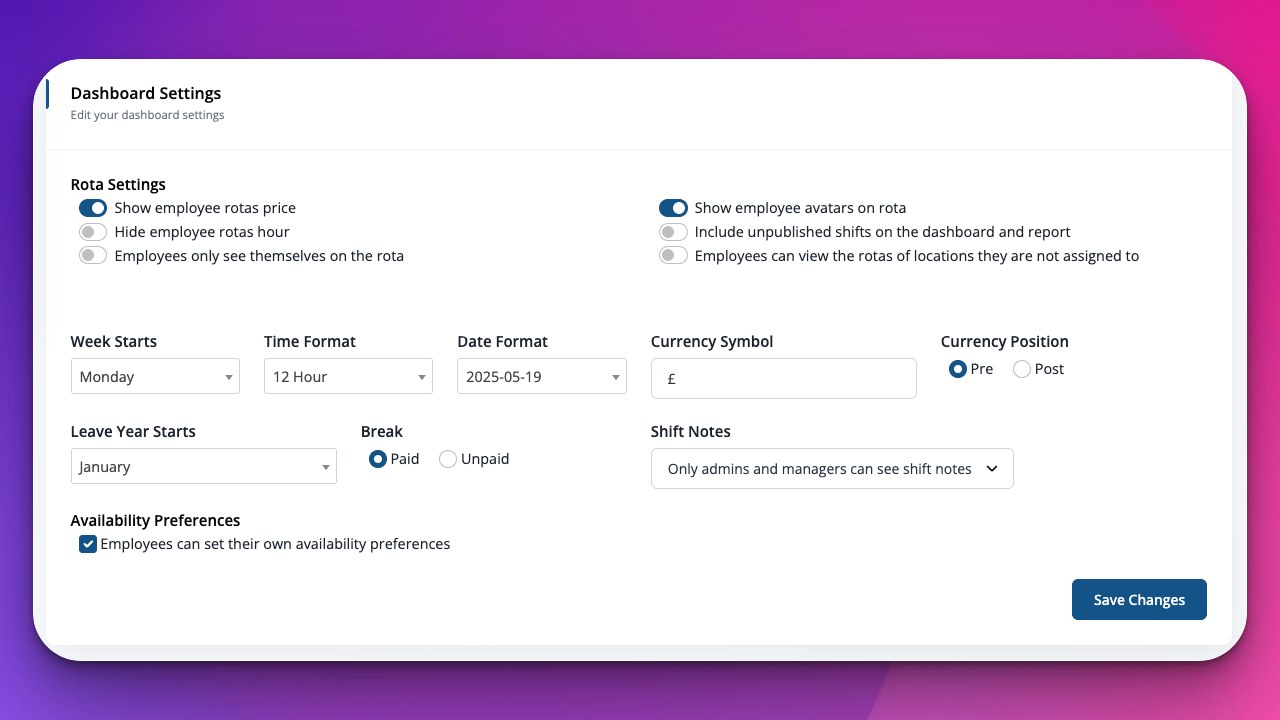
Control how your rota and report dashboards behave and appear.
Options include:
Show employee rota price / Hide rota hours
Show employee avatars on rota
Include unpublished shifts
Restrict employees to view only their own rotas
Week Starts (select Monday, Sunday, etc.)
Time Format (12‑hour / 24‑hour)
Date Format
Currency Symbol and Position (pre/post)
Leave Year Start and Default Break Duration
Availability Preferences (allow employees to set their own)
Toggle your preferred options
Click Save Changes
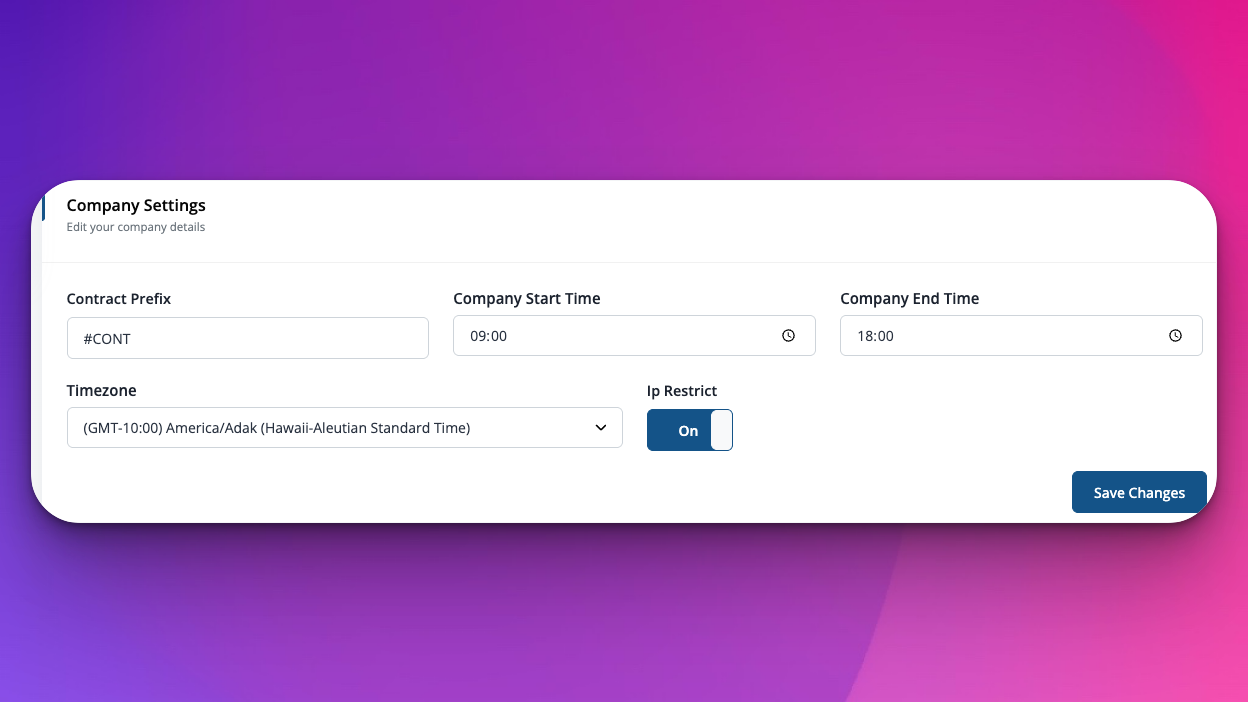
Define company‑wide defaults and restrictions.
Fields include:
Contract Prefix (e.g., #CONT)
Company Start / End Time
Timezone
IP Restrict (On/Off)
Fill in or adjust the fields
Click Save Changes
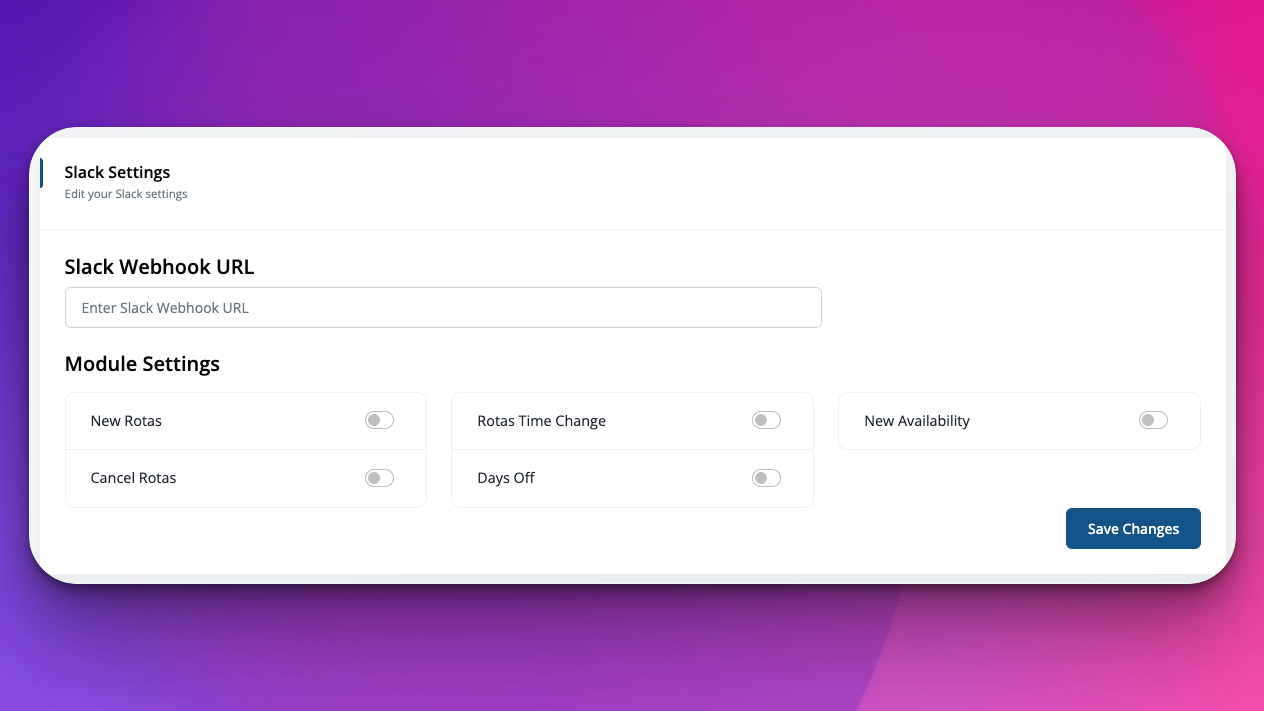
Configure Slack notifications for rota events.
Enter your Slack Webhook URL
Toggle Module Settings for:
New Rotas
Rota Time Changes
Cancellations
Days Off
New Availability
Click Save Changes
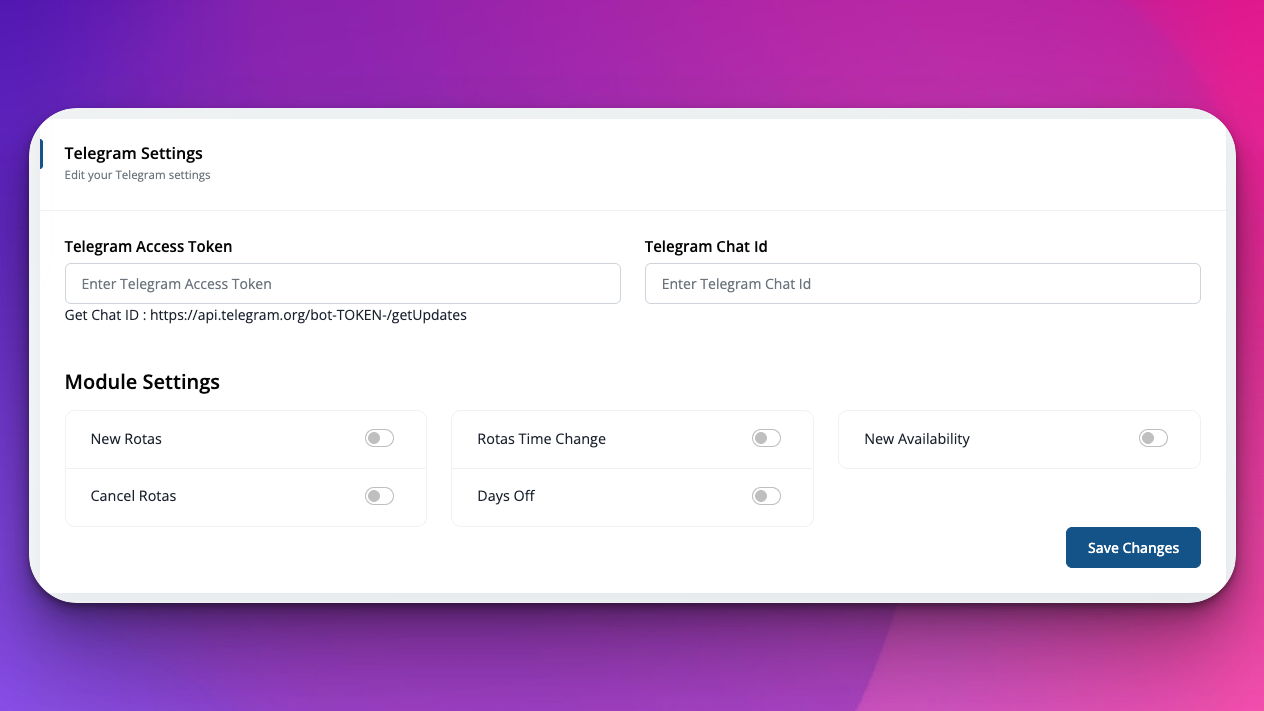
Set up Telegram notifications following similar steps as Slack.
Enter Telegram Access Token and Chat ID
Toggle the same Module Settings options
Click Save Changes
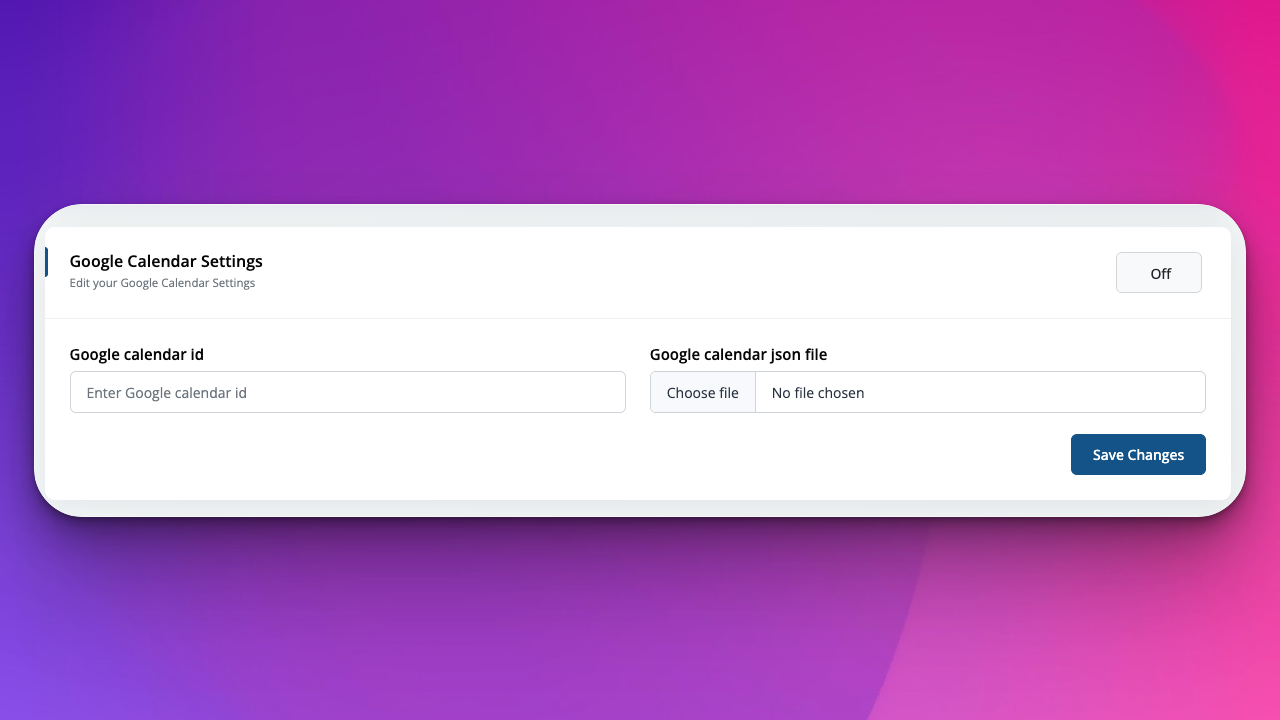
Sync your rotas with Google Calendar.
Toggle Google Calendar integration On
Enter Google Calendar ID
Upload your Google Calendar JSON credential file
Click Save Changes
I changed a setting by mistake—how do I revert?
Simply toggle or reset the option and click Save Changes again.
Settings not applying?
Ensure you click Save Changes on the specific tab you edited.
Can I restrict who sees Settings?
Only Admin and Manager roles have access by default.