🎥 Video Tutorial
👇👇
[Creating a Rota]
Plan and publish staff schedules instantly in the eHubt Mobile App.
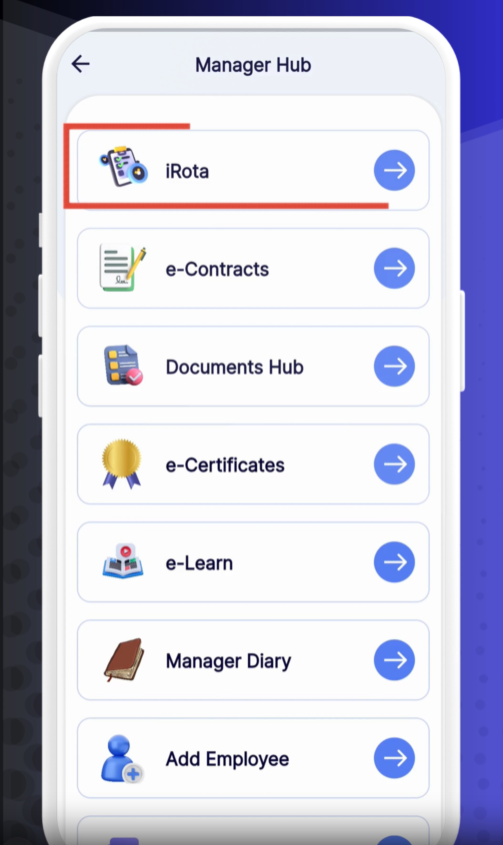
Manager Hub
Tap Manager Hub from the main menu.
Rota
Select Rota and choose your branch and department.
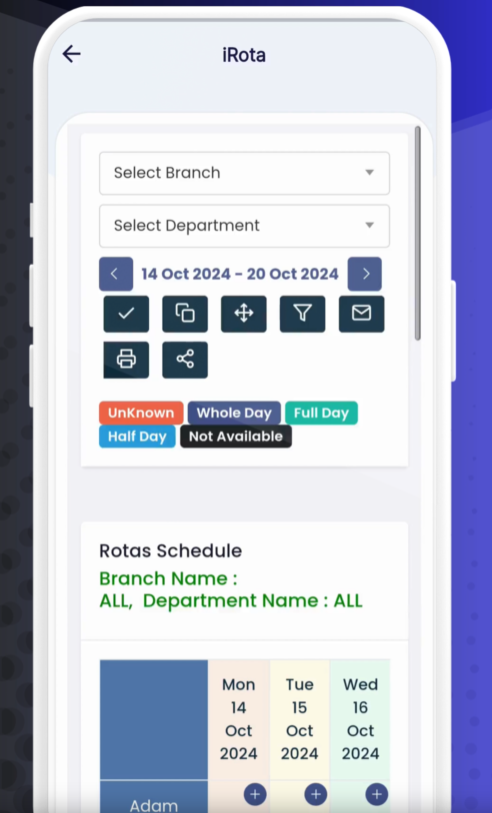
Navigate Weeks
Use the ← / → arrows at the top to move between weeks.
Publish / Unpublish
Tap the ✓ icon to publish the current week’s rota; tap again to unpublish.
Copy to Next Week
Use the Copy button to duplicate this week’s shifts into the following week.
Additional Settings
Tap the ⋮ menu for options like printing, emailing, or generating a shareable link (with optional password).
Colour Legend
Below the calendar, reference the colour key to understand different day types (e.g., working day, day off, public holiday).
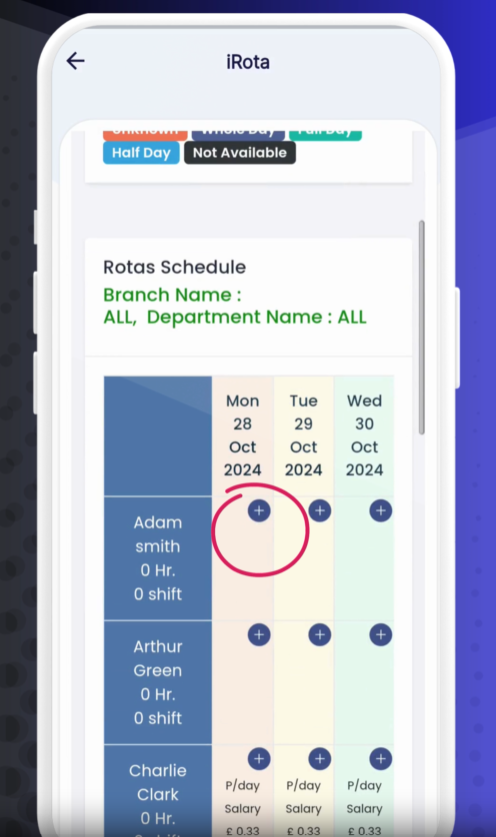
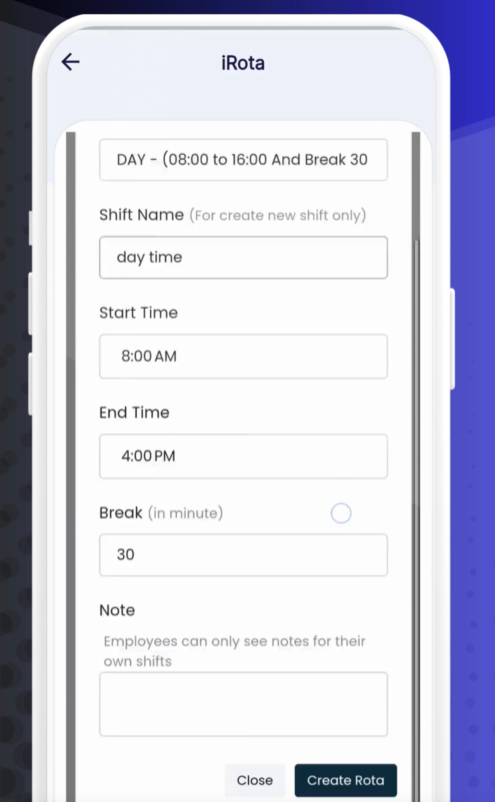
Tap the + icon on a date.
Select Shift: Choose from your predefined shift templates.
Set Times: Enter Shift Name, Start Time, End Time, and Break Duration.
Add Notes (optional): Include any instructions for staff.
Choose one of three options:
Close: Exit without saving.
Create Rota: Save this shift only.
Create & Add Another: Save and open a new “Add Shift” form.
Tap Save to insert the shift into your rota.
Edit: Tap any existing shift line to modify times, name, or notes.
Delete: Swipe left on a shift or use the trash icon to remove it.
Bulk Updates: Use Copy to Next Week for recurring schedules.
Share Securely: Generate a password-protected link to share rotas with external managers.
Print & Email: Quickly distribute physical copies or send via in-app email.
❓ Need Help?
If you have questions or run into issues, visit our Help Center at desk.ehubt.io or contact your operations manager.