🎥 Video Tutorial
👇👇
[Manage Employee Documents ]
Quickly filter and review all staff documents in the eHubt Manager Hub.
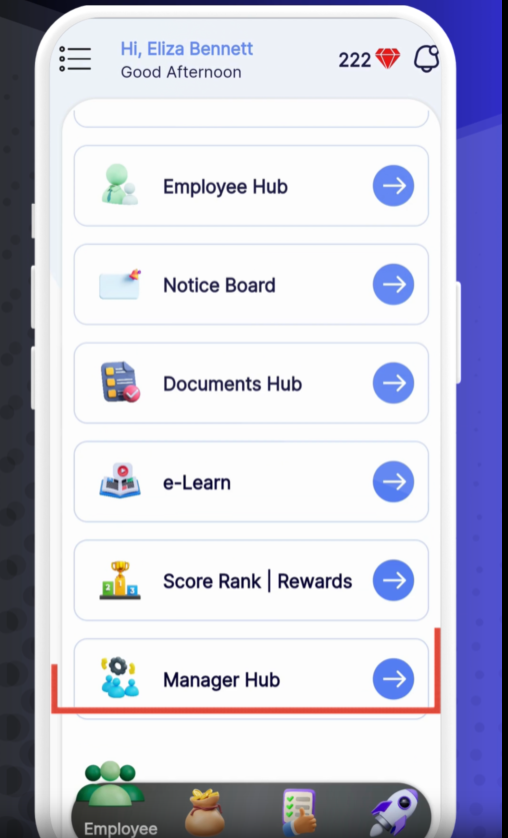
Manager Hub
Tap Manager Hub from the main menu.
Documents Hub
Select Documents Hub to open the document management screen.
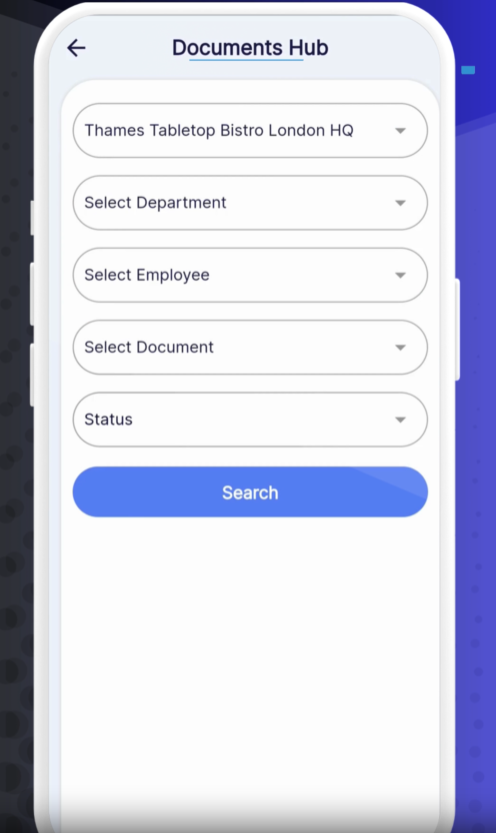
Branch
Open the Branch dropdown and choose the location.
Department
Select the relevant Department (e.g., Kitchen, FOH).
Employee
Pick the specific Employee whose documents you want to view.
Document Type
Choose the type (e.g., Passport, Visa, ID).
Status
Select All, Pending, Approved, or Rejected.
Search
Tap Search to load the filtered results.
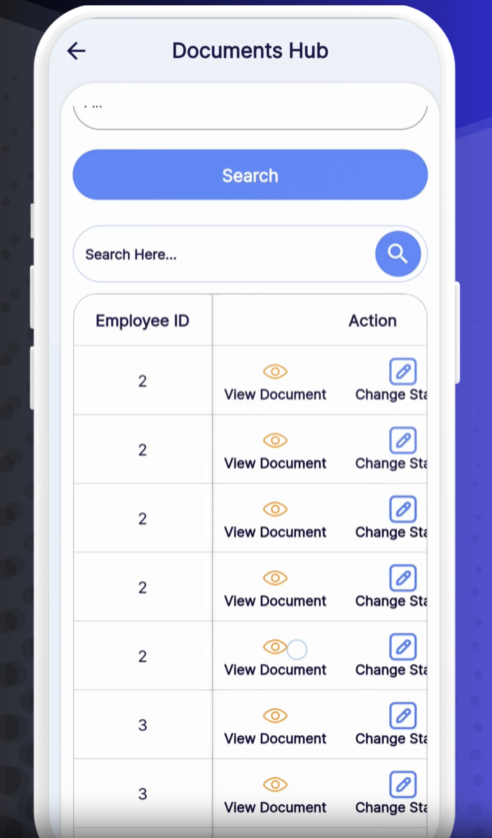
Employee ID – Unique staff identifier
Employee Name – Full name
Branch – Assigned location
Document Name – Type of document (e.g., Passport)
Document Status – Pending, Approved, or Rejected
Date Uploaded – Submission date
View (👁️) – Preview the document in full.
Change Status – Use the status dropdown or buttons to Approve, Reject, or mark Pending.
Add Comment – Leave notes explaining rejections or required corrections.
Download – Tap the download icon to save a local copy.
Bulk Actions: Use multi-select checkboxes to approve or reject multiple documents at once.
Audit Trail: All status changes and comments are logged for compliance.
Automated Reminders: Enable reminders in Company Settings to nudge employees about pending uploads.
❓ Need Help?
If you have questions or run into issues, visit our Help Center at desk.ehubt.io or contact your HR administrator.