🎥 Video Tutorial
👇👇
[Adding an Asset]
Easily track and manage company assets using the eHubt Mobile App.
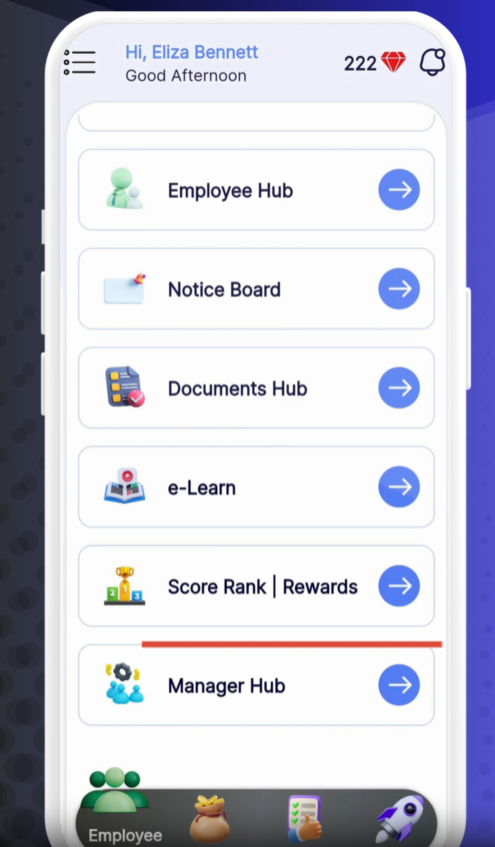
Manager Hub
Tap Manager Hub from the main menu.
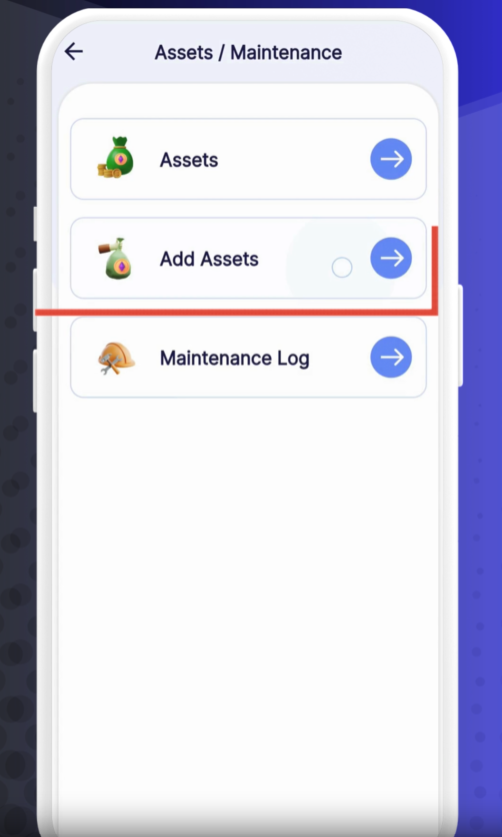
Assets
Select Assets.
Add Asset
Tap the + icon and choose Add Asset.
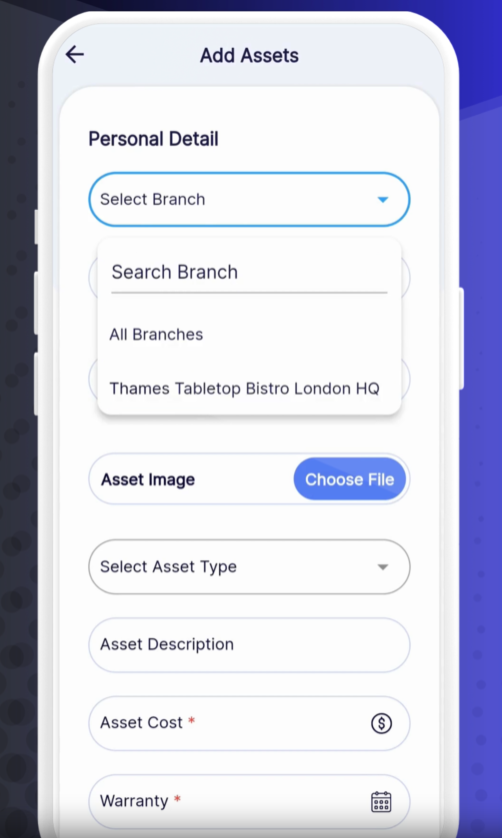
Select Branch
Choose the branch where the asset will be located.
Asset Details
Name: Enter a recognizable asset name.
Serial Number: Input the manufacturer’s serial or model number.
Image: Tap to upload a photo of the asset.
Type: Select from your predefined asset categories (e.g., Cleaning Supply, Furniture).
Additional Information
Description: Provide any relevant notes about the asset.
Cost: Enter the purchase price.
Warranty Details: Specify warranty period or expiration date.
Supplier: Add the supplier’s name, email, and support phone number.
Save
Tap Submit to create the asset record.
The new asset appears in your Assets list with its status.
You can tap an asset to view details, edit information, or upload maintenance history.
Categorize Clearly: Use consistent asset types to simplify tracking and reporting.
Upload Quality Photos: Clear images help with identification during audits.
Maintain Records: After creation, log any maintenance or usage history under the asset’s History tab.
❓ Need Help?
If you have questions or encounter issues, visit our Help Center at desk.ehubt.io or contact your manager.