🎥 Video Tutorial
👇👇
[Attendance Report]
Quickly access detailed attendance data in the eHubt Mobile App.
Attendance
Tap Attendance from the main menu.
Attendance Report
Select Attendance Report.
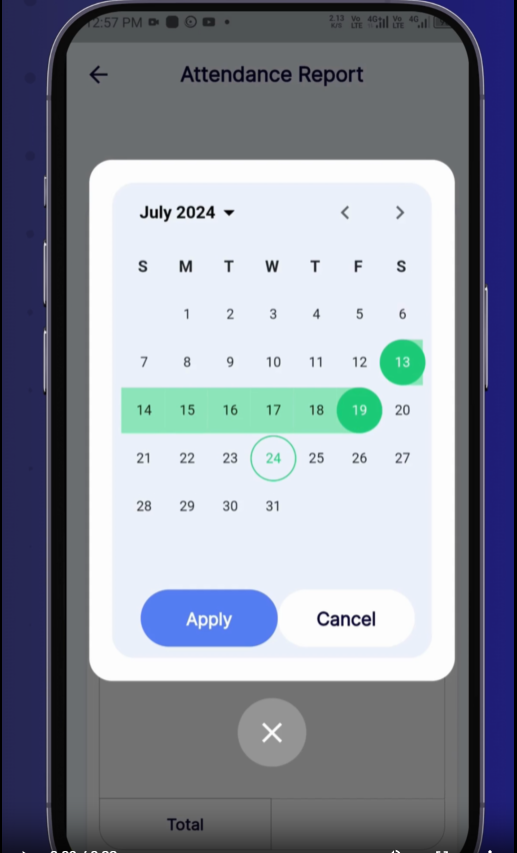
Choose Date Range
Tap the Start Date and End Date fields to select your custom period.
Apply Filters
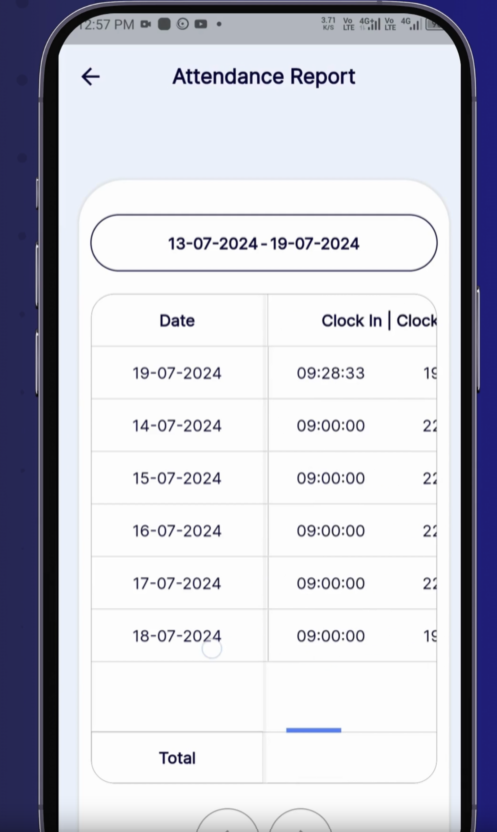
Tap Apply to view the report for the selected dates.
Your report displays a row for each employee entry, including:
Branch – Which location the attendance tablet was assigned to.
Tablet Name – The device used for clocking.
Clock In / Clock Out – Actual start and end times.
Break In / Break Out – When breaks began and ended.
Break Hours – Total time spent on breaks.
Work Hours – Time between clock in and clock out, minus breaks.
Total Hours Worked – Net hours recorded for payroll.
💡 Pro Tips
Export Data: Use the export icon to download the report as a CSV or Excel file.
Filter by Branch: Tap the branch dropdown to focus on a single location.
Review Weekly: Run this report weekly to catch any missed punches early.
❓ Need Help?
If you have questions or experience issues, visit our Help Center at desk.ehubt.io or contact your manager.