The Payslip module under Payroll allows you to generate payment slips for employees based on their working hours or monthly salary, ensuring accurate and streamlined payroll management.
💼 How to Generate a Payslip
Navigate to: Payroll → Create Payslip
Select a Payment Basis:
🔘 Hourly Based – For staff paid based on hours worked.
🔘 Monthly Based – For staff on a fixed monthly salary.
🔘 Job Based – For freelance or task-based payments.
Apply Filters:
Branch – Select relevant location.
Department – Narrow down by role.
Employee – Generate for all or individual staff.
Date Range – Define pay period.
Optional checkboxes for:
✅ Overtime
✅ Holiday Pay
✅ Bonus
✅ Commission
✅ Deductions, etc.
Click Search to fetch employees based on selected criteria.
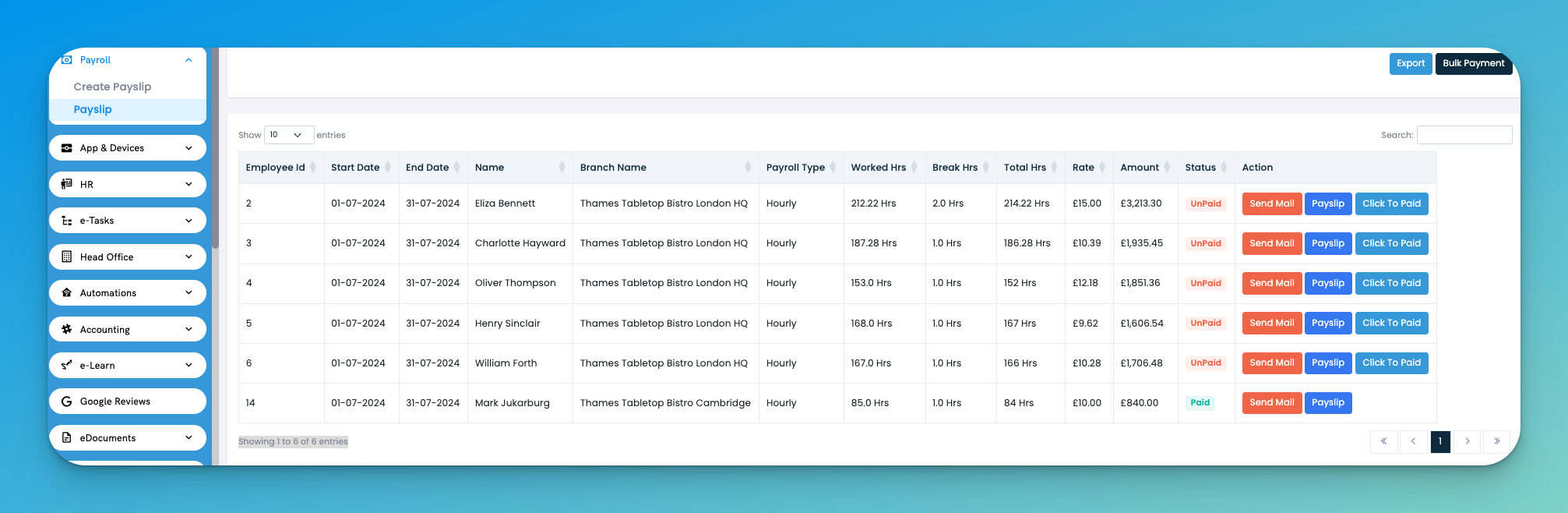
You’ll see a list showing:
Employee ID
Start Date / End Date
Name & Branch
Payroll Type – Hourly or Monthly
Worked Hours
Break Hours
Total Hours
Action – Click Save or use Bulk Payment for all.
🧾 Use Save to finalize each payslip or Send Email to All for quick delivery.
Select Hourly Based at the top to enable pay by hours worked — ideal for casual or part-time employees.
Choose Monthly Based for full-time salaried roles.
Use the Bulk Payment button to quickly finalize and send out multiple payslips.
Apply filters before searching to avoid cluttered results.
Always verify break hours and overtime for accuracy before saving.
1. Can I generate payslips for both hourly and monthly staff?
Yes! Simply select Hourly Based or Monthly Based at the top before generating payslips. The system will adjust automatically based on the selection.
2. Where do I find the payslip generation feature?
Go to Payroll → Create Payslip. From here, choose the payment basis, apply filters, and click Search.
3. What is the “Job Based” option used for?
“Job Based” is ideal for freelance, contract, or task-based payments. Select this if employees are paid per job/task rather than hours or fixed salary.
4. Can I apply bonus, overtime, or deductions while creating payslips?
Yes. Use the checkboxes above the Search button to include:
Overtime
Bonus
Holiday Pay
Commission
Pension
Deductions
These will be factored into the payslip automatically.
5. How do I send payslips to employees?
After generating, click Save beside each entry. You can also use the Send Email to All button at the bottom to email payslips in bulk.
6. What if I want to delete or clear payslip data?
You can use the Clear All button to remove the data from the grid before saving.
7. Can I export the payslip data?
Yes, click the Export button near the top right to download the payslip list for recordkeeping.
8. Why is the Total Hrs field blank or incorrect?
Make sure:
The employee has logged worked hours in the attendance system
Break hours are properly recorded
You’ve selected the correct date range