🎥 Video Tutorial
👇👇
[Employee Document hub]
Manage all your required documents in one place using the eHubt Mobile App.
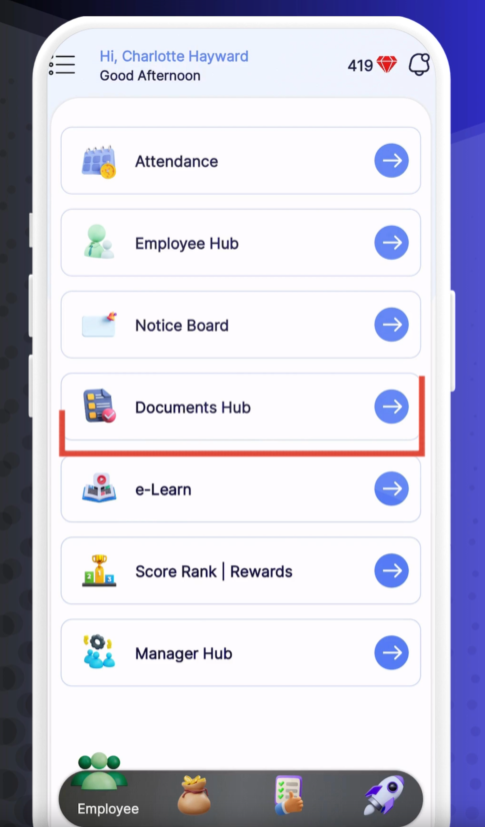
Document Hub
Tap Document Hub from the main menu.
My Documents
Select My Documents.
0:00
Tap Document Hub, then choose My Documents.
0:02
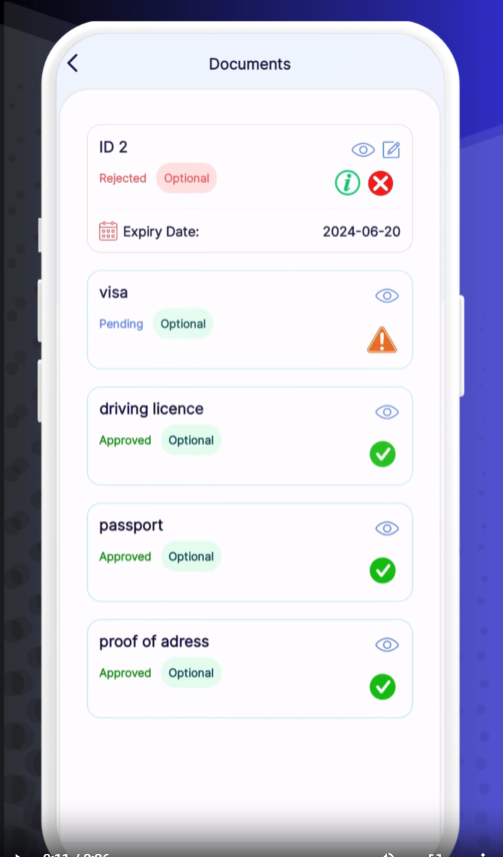
You’ll see a list of all your documents, grouped by status:
Approved
Pending
Rejected
0:05
Tap any document to view it.
0:08
For rejected items, you’ll see the rejection reason—so you know what needs fixing.
0:13
To upload a new document or re-submit, tap the + (plus) icon, select your file or use your camera, and then tap Submit.
Approved – Your document meets requirements.
Pending – Awaiting review by HR or management.
Rejected – Not accepted; review the reason and re-upload.
Use Your Camera: Snap photos of physical documents directly within the app for quick upload.
Check Requirements: Ensure files are clear and match the required document type (e.g., passport, visa).
Monitor Status: Keep an eye on any “Pending” or “Rejected” items to maintain compliance.
❓ Need Help?
If you encounter any issues or have questions, visit our Help Center at desk.ehubt.io or contact your manager.