The Payslip module under Payroll enables you to calculate and finalize salaries for employees based on hourly, monthly, or job-based criteria. You can include additional components such as bonuses, overtime, commissions, and more. It ensures timely payroll processing with flexibility to handle various compensation structures.
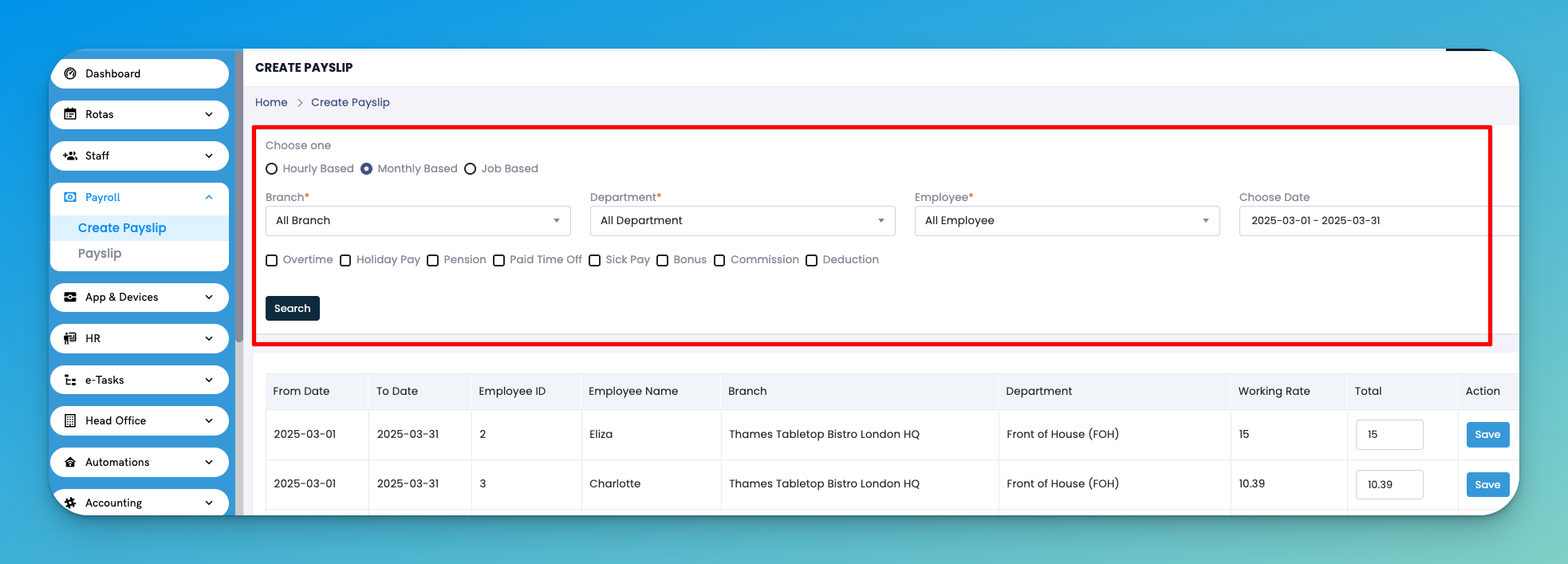
Navigate to: Payroll → Create Payslip
You’ll first see a filter area where you can choose:
Payment Type: Hourly Based, Monthly Based, or Job Based
Branch: Select from available branches
Department: Filter by specific departments
Employee: Focus on an individual or include all
Choose Date: Define the payslip period
Additionally, you can include specific pay components:
Overtime
Holiday Pay
Pension
Paid Time Off
Sick Pay
Bonus
Commission
Deduction
Click Search to generate a list of employees based on the filters.
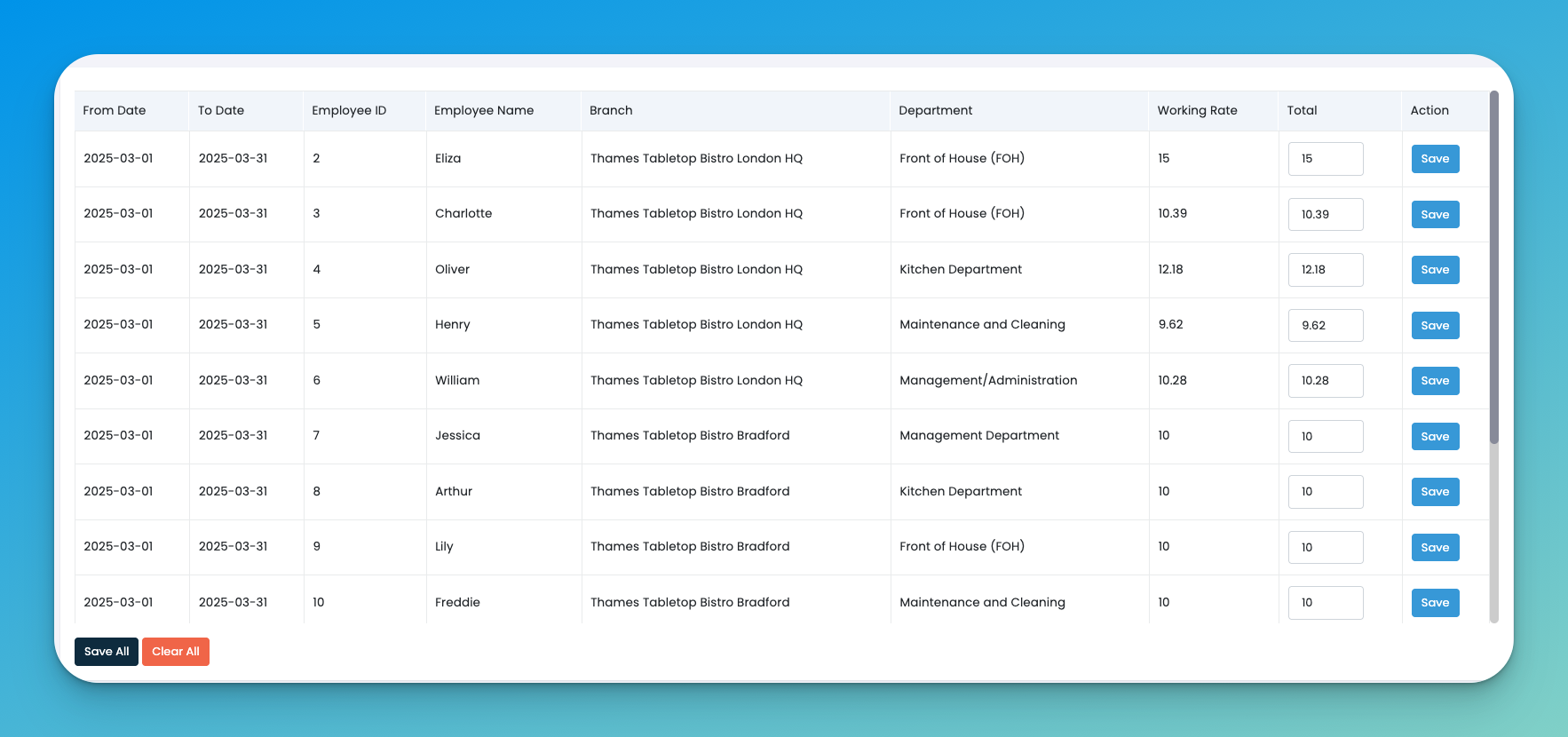
Once generated, you’ll see a list of employees and their pay summaries for the selected period.
Each entry includes:
From Date / To Date – The salary period
Employee ID – Internal unique identifier
Employee Name – Full name of the employee
Branch – Branch assignment
Department – Department name
Working Rate – Hourly or fixed rate assigned to employee
Total – Total salary amount based on selected components
Action – Press the Save button to finalize that employee’s payslip
At the bottom of the screen, you also have options:
Save All – Finalize payslips for all listed employees
Clear All – Reset all entries if needed
🔄 Always double-check the date range before generating payslips to avoid overlapping or missing data.
🔍 Use filters wisely to batch-generate payslips by branch or department for faster processing.
💰 Include all applicable components like bonus, deduction, and overtime for accurate payroll calculation.
📥 Save regularly to ensure no data is lost, especially when working with large teams.
Q: Can I generate payslips for only one department or branch?
Yes. Just use the filters at the top to target specific branches or departments.
Q: What if I make a mistake?
Simply click Clear All and rerun the filters to regenerate the payslip view before saving.
Q: Can I edit the total amount before saving?
Yes, the Total field can be manually adjusted if needed — just make sure the amount is correct.
Q: What happens after I click Save?
The payslip for that employee is locked in and can be used for further payroll reports or downloads.
Q: Do I need to click Save for each employee?
Not necessarily. If all data looks good, use the Save All button to finalize payslips in one go.