The Set Salary module under Staff lets you define how each employee is paid, including their base salary, type (hourly or fixed), allowances, deductions, commissions, and overtime. This helps automate payroll calculations and ensures transparent, structured pay across your team.
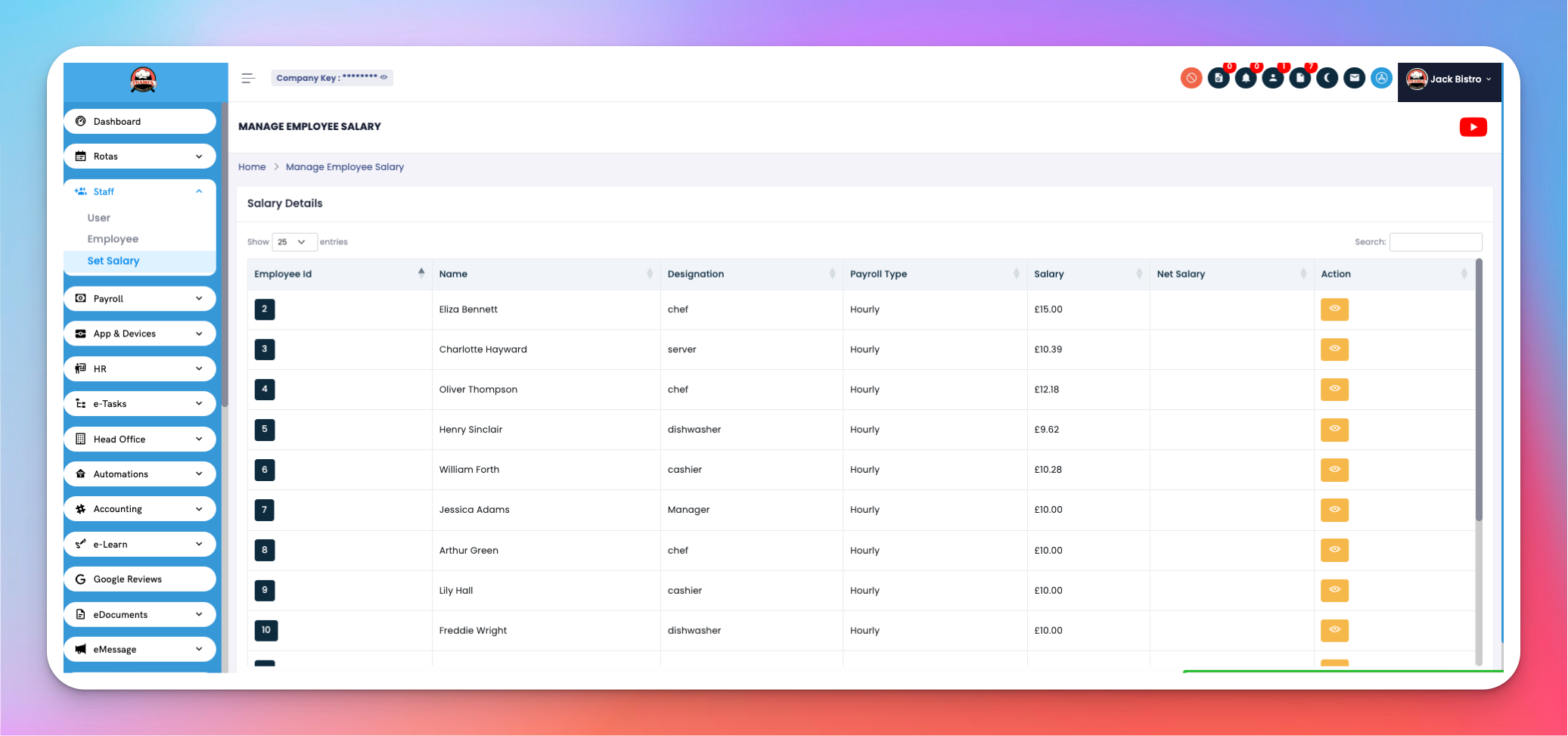
Navigate to Staff → Set Salary
You’ll see a list of employees with their payroll settings:
Employee ID – Unique internal ID
Name – Employee’s full name
Designation – Job title (e.g., chef, manager)
Payroll Type – Hourly, Fixed, etc.
Salary – Hourly rate or fixed monthly wage
Net Salary – Calculated after all additions and deductions
Action – Click the 👁️ View button to access detailed salary configuration
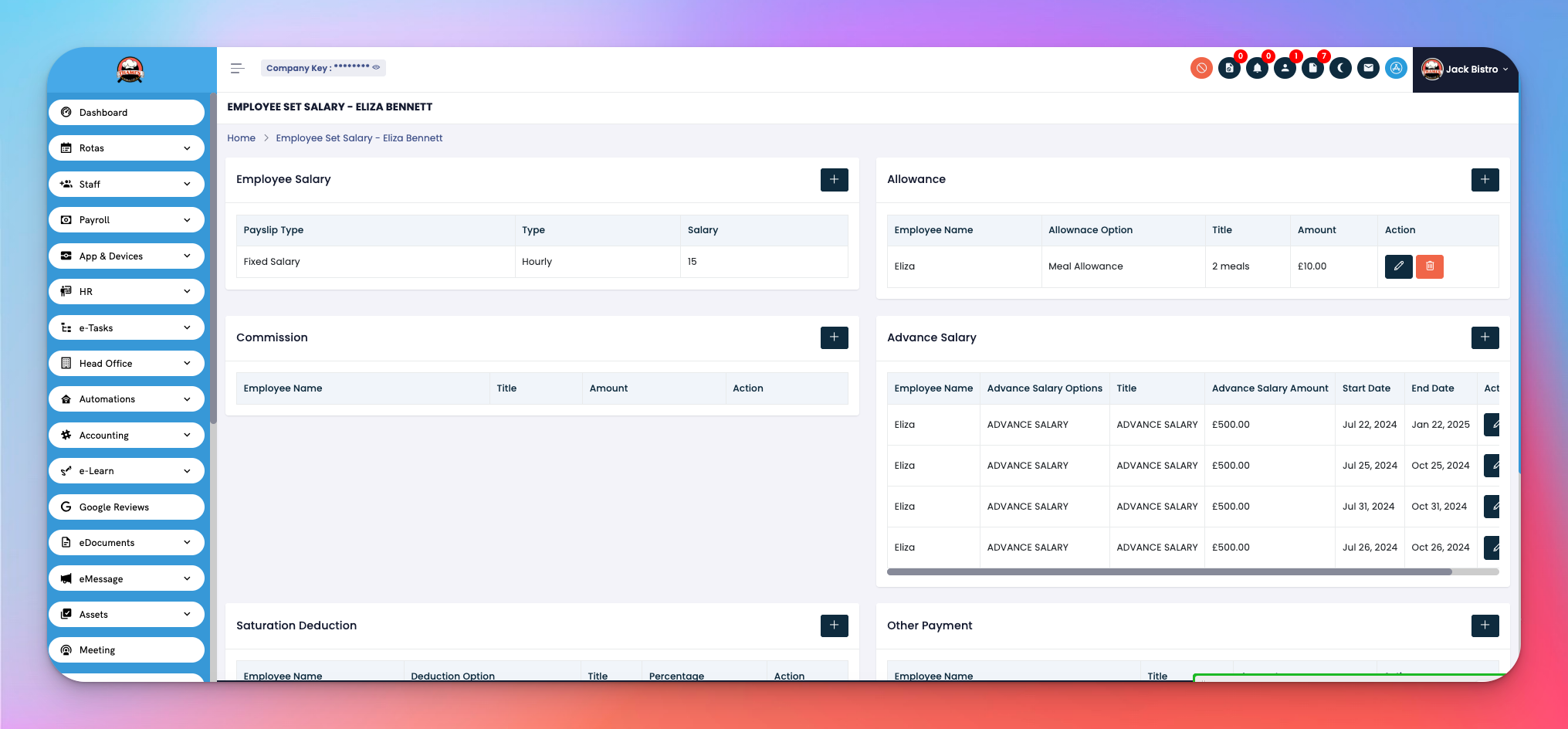
Click the eye icon to open the detailed salary breakdown for that employee.
Here you can manage multiple components:
Choose Hourly, Fixed, or Custom Pay Type
Enter base salary amount
Add meal, travel, or other allowances
Set recurring amounts (e.g., £20/month)
Record issued advances
Track how much has been given and when
Add commission by title (e.g., Sales Bonus)
Specify exact amount
Define any custom deduction rules
Set fixed amount or percentage
Add extra payments like service bonuses or special perks
Select fixed rate or multiple of base rate
Used in automated payroll calculations if overtime is logged
Choose how holidays are paid (paid/unpaid/partial)
Select from available pension plans (if configured)
Toggle option for employees paid per task rather than by hour/month
Configure for offsite or remote team members (if applicable)
Keep salary types consistent per role to streamline payroll.
Use Advance Salary tracking to avoid manual follow-ups.
Enable Pay Per Job only when needed — useful for contractors.
Regularly update allowance and deduction values based on changes in role or policy.